Back to all modules Definitions: common terms, defined Search the tool

Pulse Academy | GovCon Mastery Tool
SAM Registration: Account Setup: Login.gov and Your SAM Profile
SAM screens 1 to 11 of 92. One screen at a time: see it, learn it, practice it, then answer the screen check to mark the screen complete. Back and Next always work, so you can move in any order.
Before you start: how completion works.
You can move around freely here. Open any screen in any order; nothing is locked, and Back and Next always work.
But a screen does not count as complete just because you opened it. Each screen counts only when you finish its practice and pass the short quiz at the end of it, the screen check. The module counts as complete only when every one of its screens is complete, and your completion credit and certificates come from that finished work.
Jump anywhere you need to. Then come back and finish each screen for real.
Screen 1: Get your NAICS codes ready before you start
Before you touch SAM.gov, do one piece of homework: know your NAICS codes. SAM.gov is the System for Award Management, the federal government's official system where companies register to do business with the government. NAICS stands for North American Industry Classification System. A NAICS code is a six digit number that describes what your business does.
Your codes matter before registration even starts, because they drive two things later: the size standard your company is judged against, and which opportunities the system matches to you.
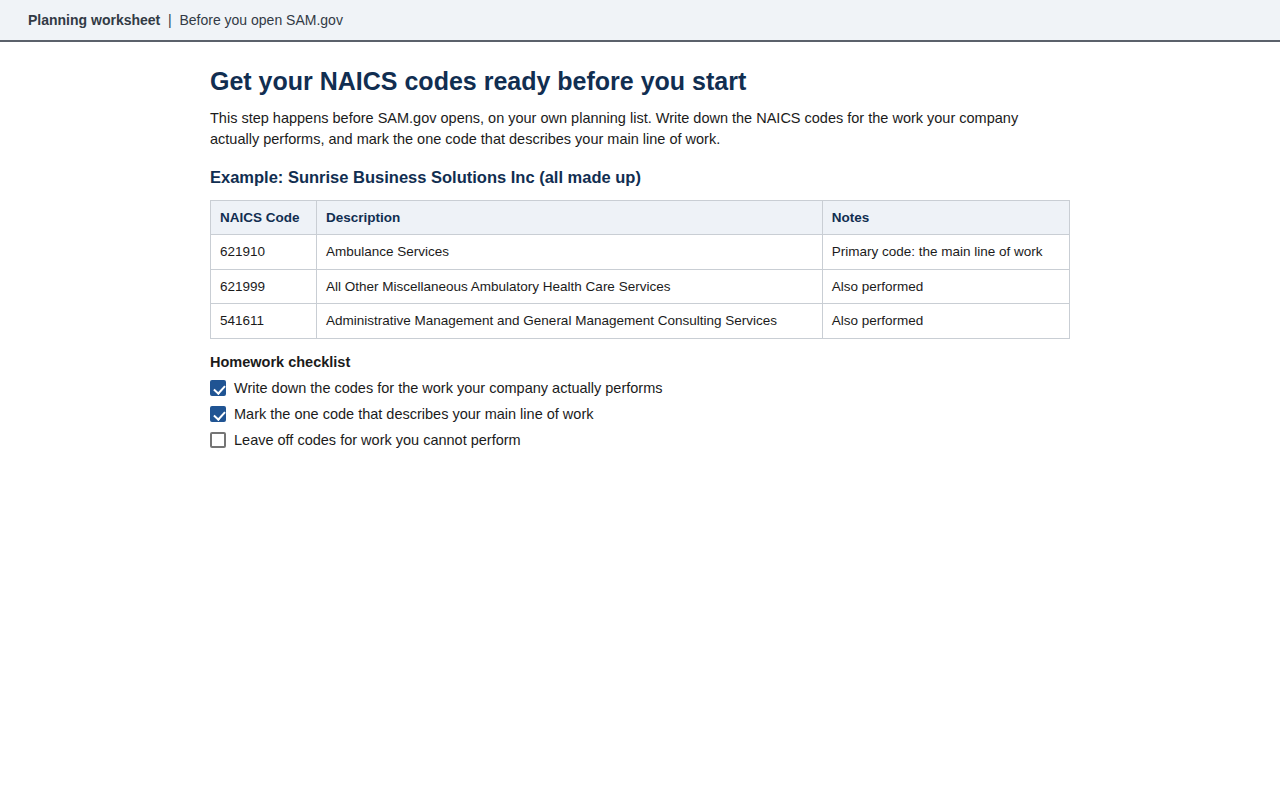
Planning step, before SAM.gov opens
This step happens off the SAM.gov site, on your own planning list. There is no SAM.gov screen to copy here.
When you do this step for real, this is the screen waiting for you on the site. Read it over, then use the practice screen below to learn the step by doing it safely first.
Practice with the example company. Sunrise Business Solutions Inc is an ambulance services company. Pick its primary NAICS code.
Example company card: Sunrise Business Solutions Inc (all made up)
| Legal business name | Sunrise Business Solutions Inc |
| What it does | Ambulance services |
| Physical address | 4120 Meridian Crossing, Suite 210, Indianapolis, IN 46204 |
| Start date | March 14, 2019 (date of incorporation, Indiana) |
| Fiscal year end | December 31 |
| Owner and president | Casey Morgan |
A quick check on this one screen. Answer every question correctly to mark this screen complete. You can move on with Next at any time, finished or not, but the screen only counts as complete once its practice and this check are both done. You can try again if you miss one.
Which NAICS code describes the work your company actually performs, and which one is your main line of work?
Why does the primary NAICS code matter before you ever reach SAM.gov?
Do this homework before you register: write your NAICS list from the work you actually perform, and mark your primary code. Keep the list with your formation papers; you will type these codes into SAM.gov at the Goods and Services step.
Screen 2: Login.gov: Create an account
SAM.gov does not have its own password. You sign in to SAM.gov with a Login.gov account. One Login.gov account is your login for SAM.gov and for other federal sites.
This screen is where a new user creates that account. You start with your email address, pick your language, and accept the Login.gov Rules of Use.
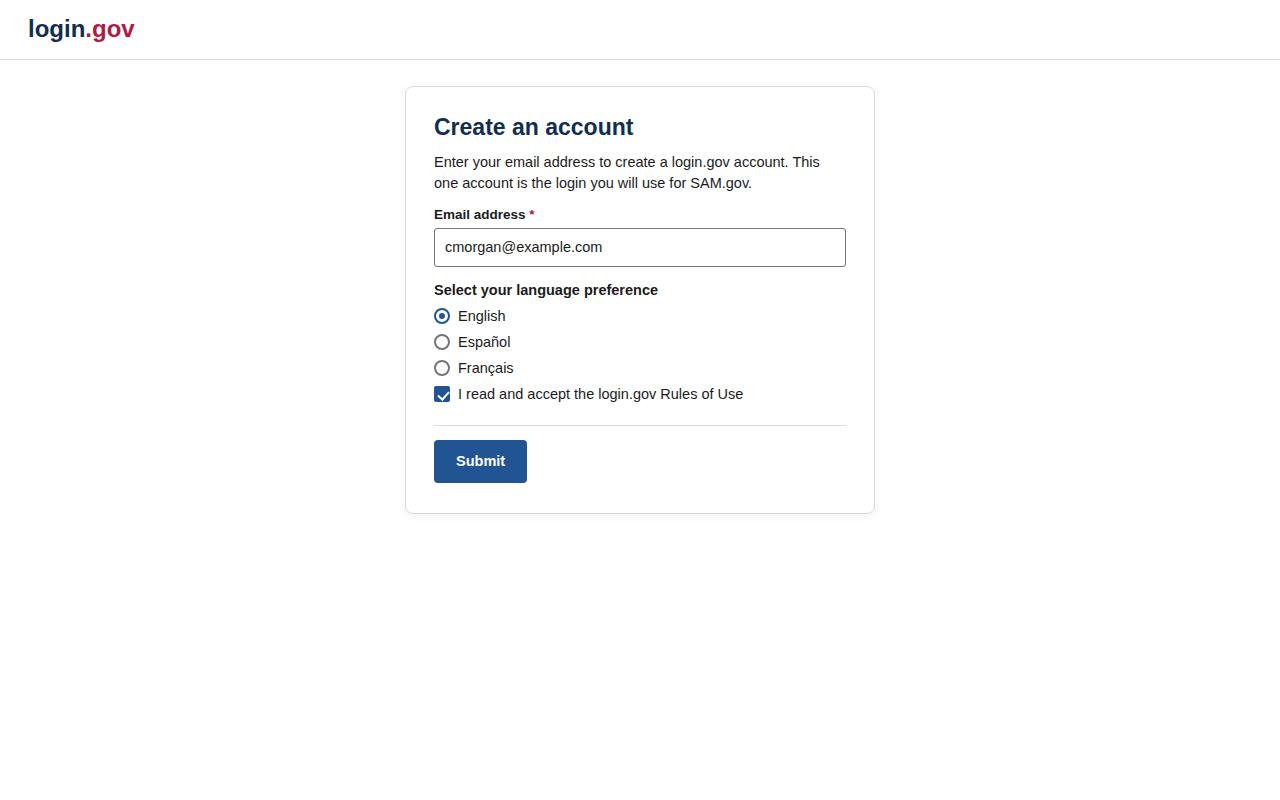
Login.gov, Create an account page
The page shows an email address field, language choices with English selected, a checkbox for the Rules of Use, and a Submit button.
When you do this step for real, this is the screen waiting for you on the site. Read it over, then use the practice screen below to learn the step by doing it safely first.
Practice only. Type a made up email address in the right shape, pick English, and check the Rules of Use box. Never type a real password into a practice screen.
Pick one: language
Checkbox: check it when this is true
A quick check on this one screen. Answer every question correctly to mark this screen complete. You can move on with Next at any time, finished or not, but the screen only counts as complete once its practice and this check are both done. You can try again if you miss one.
What is the one account you will use to sign in to SAM.gov, and does SAM.gov have separate credentials of its own?
What must you accept before the Submit button completes account creation?
When you are ready to do this for real, go to login.gov and create your account with your real email address. Registration and the account are free.
Screen 3: Login.gov: Your account dashboard
After your account exists, this dashboard is where you manage it. Your email addresses, your password, your phone numbers, and your authentication methods all live here.
An authentication method is how Login.gov confirms it is really you when you sign in, for example a code sent to your phone or an authentication app. Set up a strong method now, not later, because you will use it every time you sign in to SAM.gov.
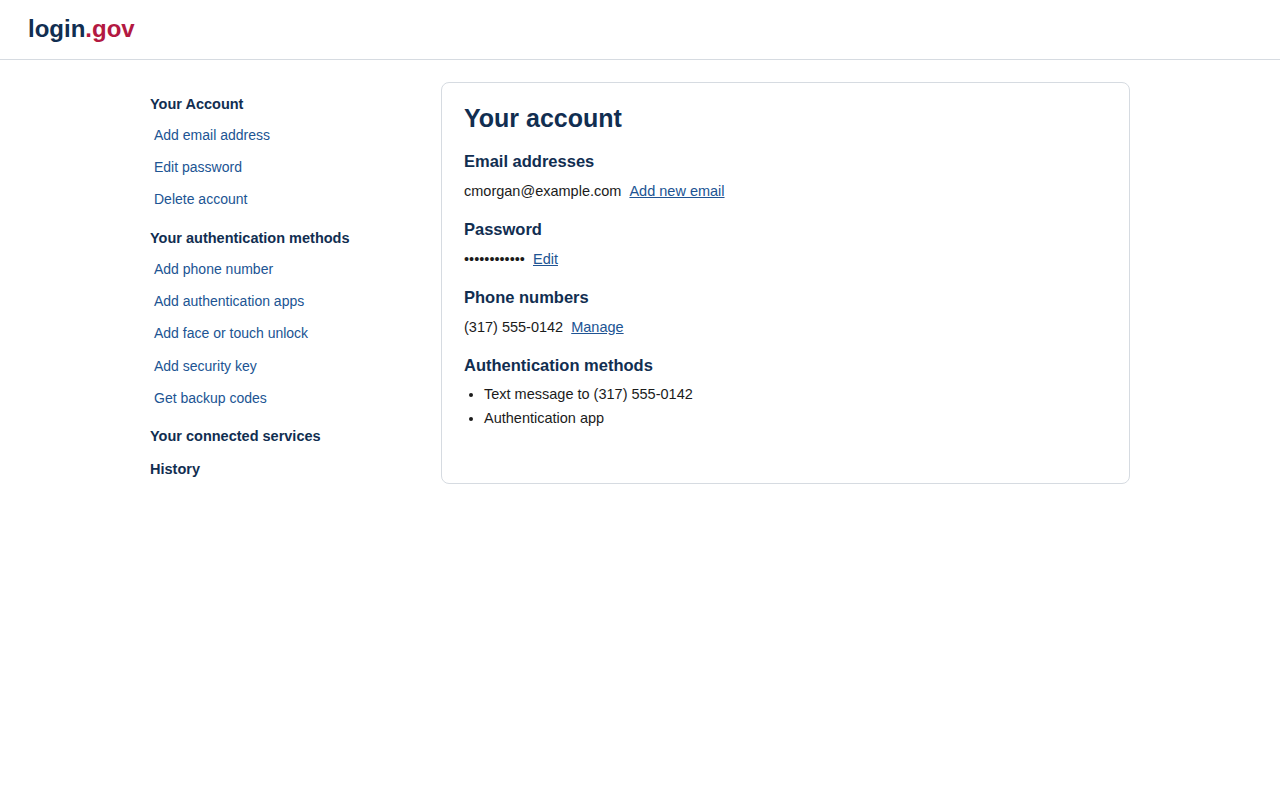
Login.gov, Your account dashboard
The left side lists your account settings and your authentication methods. The main panel shows your email addresses, password, and phone numbers, each with an Edit or Manage control.
When you do this step for real, this is the screen waiting for you on the site. Read it over, then use the practice screen below to learn the step by doing it safely first.
Practice finding your way around. The dashboard in this practice is simplified. Pick where you would go to add an authentication app.
A quick check on this one screen. Answer every question correctly to mark this screen complete. You can move on with Next at any time, finished or not, but the screen only counts as complete once its practice and this check are both done. You can try again if you miss one.
Where on this dashboard do you manage your email, password, and authentication methods?
Why set up a strong authentication method now instead of later?
On the real dashboard at login.gov, set up a second authentication method now, while nothing is urgent. A backup method is what saves you when a phone is lost or replaced.
Screen 4: Sign in to SAM.gov with Login.gov
This is the sign in screen you will see again and again. When you choose to sign in at SAM.gov, you land here, on Login.gov.
You enter the email address and password of your Login.gov account. Not a SAM.gov password, because there is no such thing.
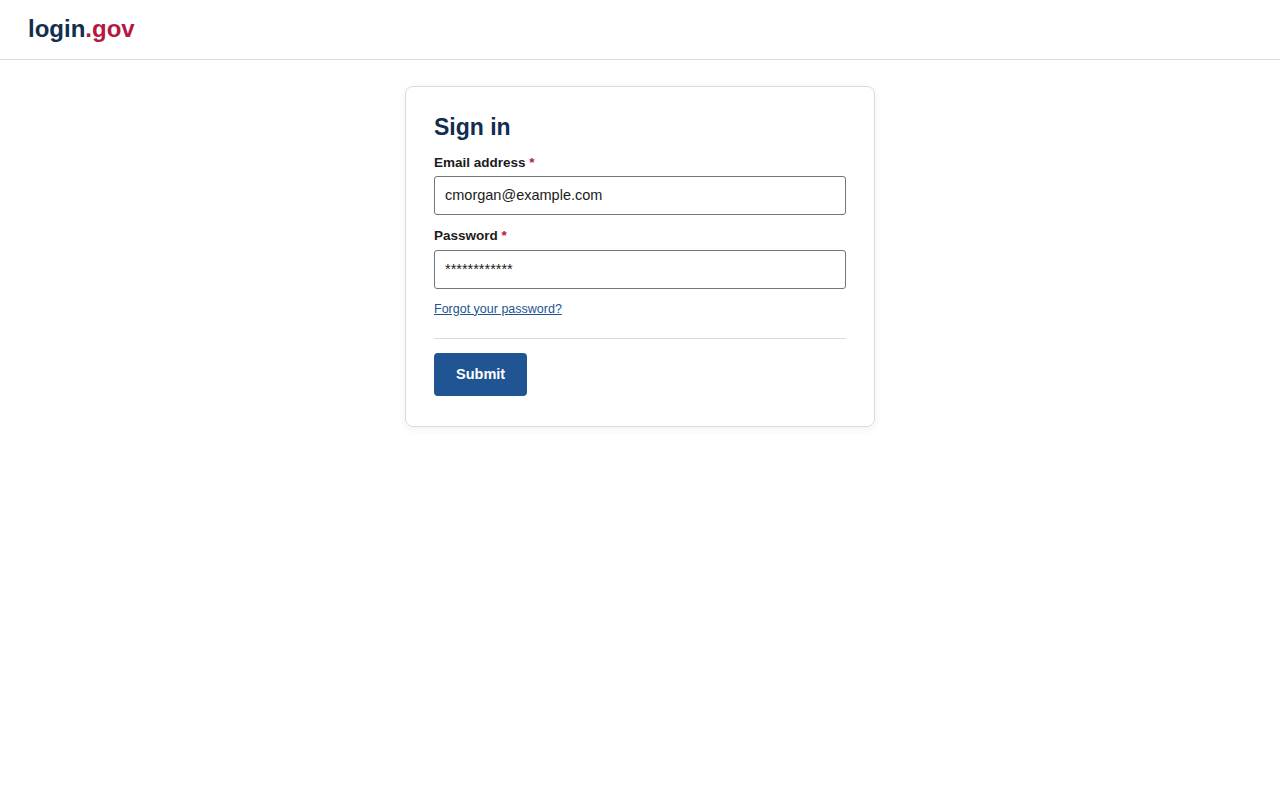
Login.gov, Sign in page
The page shows an email address field, a password field, and a Submit button.
When you do this step for real, this is the screen waiting for you on the site. Read it over, then use the practice screen below to learn the step by doing it safely first.
Practice only. Type the made up email from the card and any made up password of at least 12 characters. Never type a real password into a practice screen.
Practice sign in (all made up)
| cmorgan@example.com |
A quick check on this one screen. Answer every question correctly to mark this screen complete. You can move on with Next at any time, finished or not, but the screen only counts as complete once its practice and this check are both done. You can try again if you miss one.
Which email and password sign you in here?
On the real site, choose Sign In at sam.gov and you will be sent to this Login.gov screen automatically.
Screen 5: Login.gov: Enter your one-time code
After your password, Login.gov asks for a one-time code. The code is sent to the authentication method on your account, such as your phone or your authentication app.
Codes expire quickly. If a code is rejected, do not keep typing the same code. Wait for, or request, a fresh code and enter that one. In the real registration walkthrough this lesson is built from, an old code failed first, and a fresh code worked.
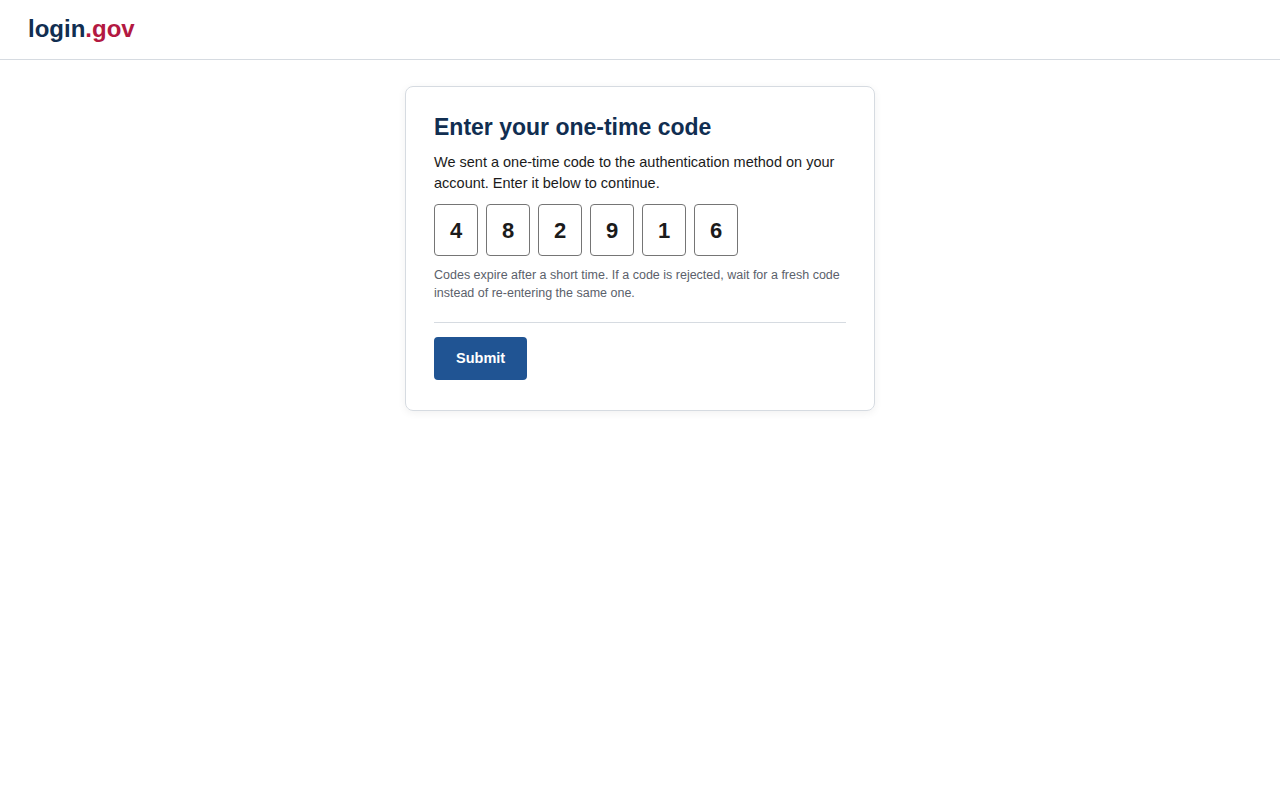
Login.gov, Enter your one-time code page
The page shows a single code entry field and a Submit button.
When you do this step for real, this is the screen waiting for you on the site. Read it over, then use the practice screen below to learn the step by doing it safely first.
Practice only. A made up text message is shown below. Type the code from it, exactly as shown.
Practice text message (made up)
| Message | Your Login.gov one-time code is 246810. It expires in 10 minutes. |
A quick check on this one screen. Answer every question correctly to mark this screen complete. You can move on with Next at any time, finished or not, but the screen only counts as complete once its practice and this check are both done. You can try again if you miss one.
What do you do when a one-time code is rejected?
Where does the one-time code come from?
On the real sign in, keep your phone or authentication app beside you and type the newest code as soon as it appears. If a code expires, request a fresh one rather than retyping an old one.
Screen 6: Login.gov: Continue to SAM.gov
This consent screen tells you that Login.gov will share your account information with SAM.gov, so SAM.gov knows who you are.
There is one button that matters here: Agree and continue. Selecting it takes you into SAM.gov.
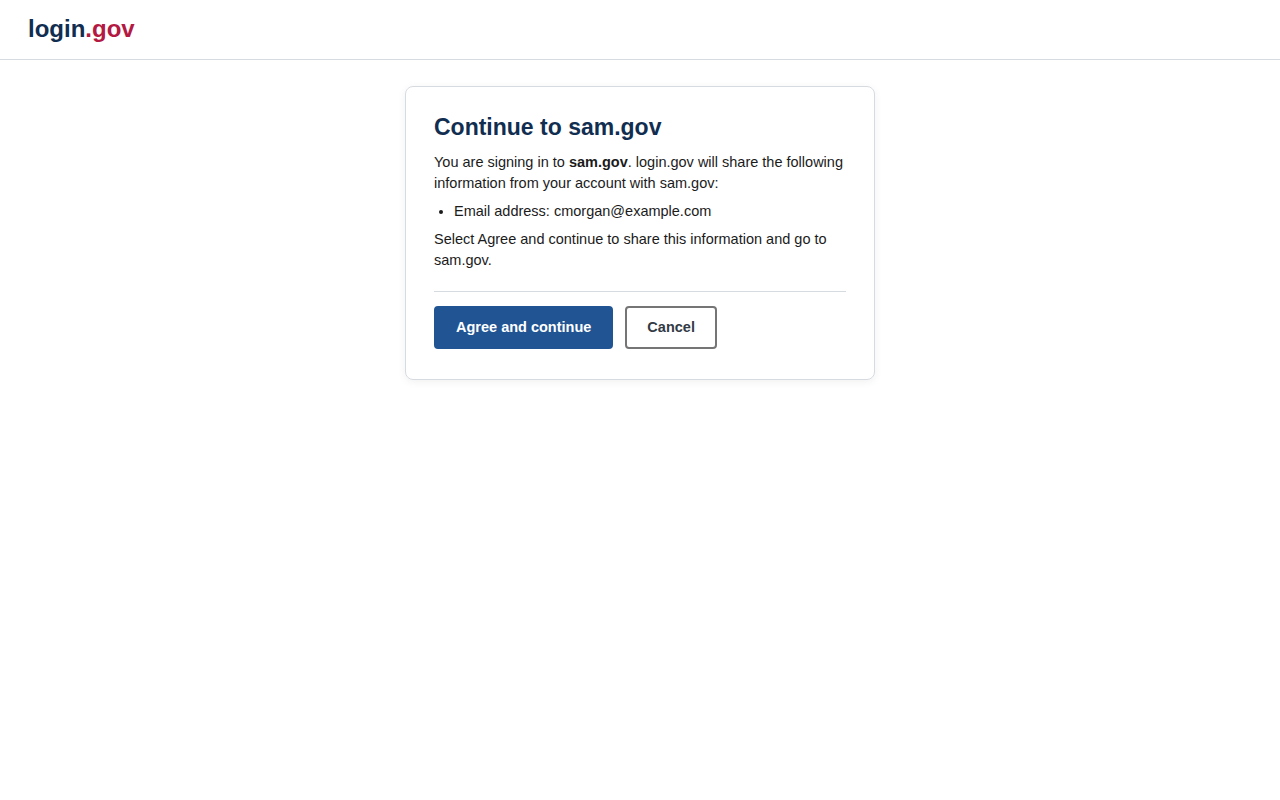
Login.gov, Continue to sam.gov consent page
The page explains the information sharing and shows an Agree and continue button.
When you do this step for real, this is the screen waiting for you on the site. Read it over, then use the practice screen below to learn the step by doing it safely first.
Practice the handoff. Pick the button that continues into SAM.gov.
A quick check on this one screen. Answer every question correctly to mark this screen complete. You can move on with Next at any time, finished or not, but the screen only counts as complete once its practice and this check are both done. You can try again if you miss one.
What are you agreeing to when you select Agree and continue?
On the real screen, read what Login.gov will share, then agree to continue into SAM.gov. This consent appears because two government systems are handing you off, one to the other.
Screen 7: SAM.gov: Agree to the Terms of Use
The first SAM.gov screen after sign in is the Terms of Use. It is a long page of rules for using the system, covering data access, system security, and your responsibilities as a user.
You must accept the terms to use SAM.gov. Scroll, read what you can, and accept at the end of the page.
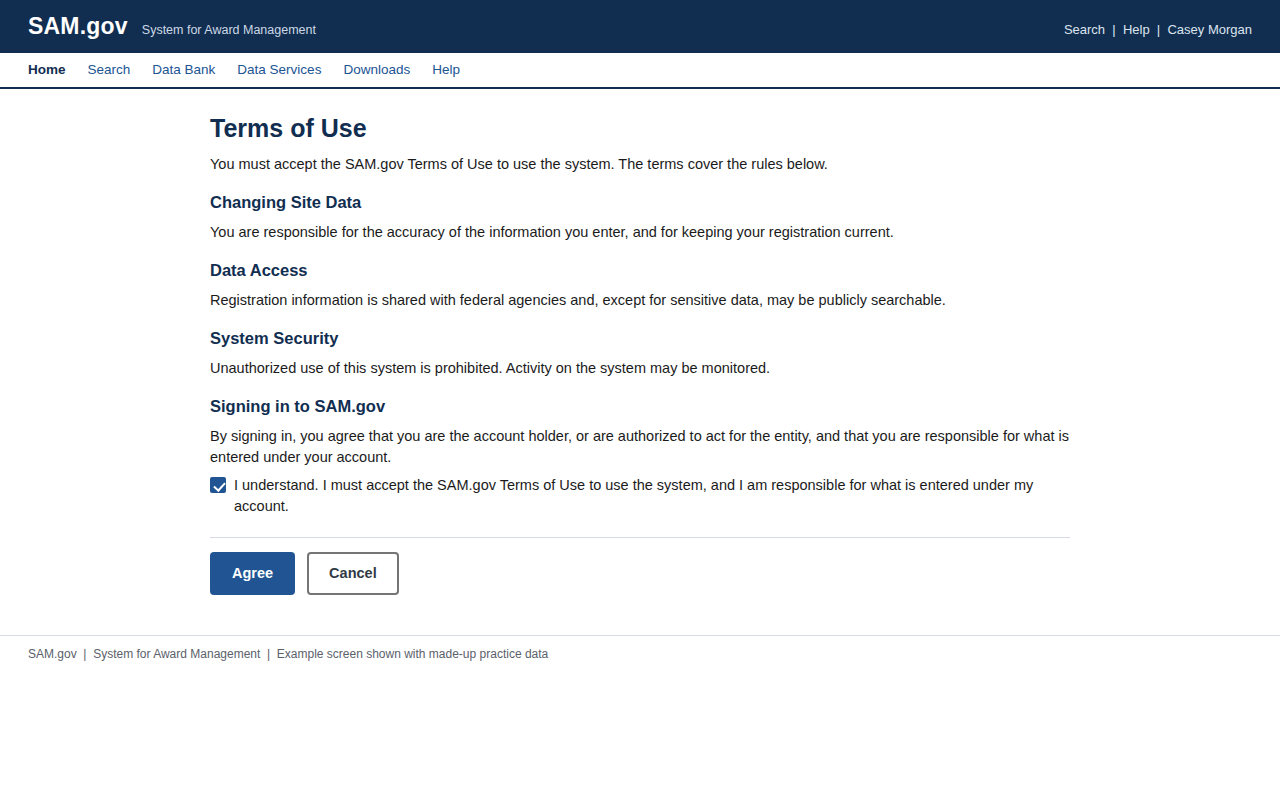
SAM.gov, Terms of Use page
A long terms page with sections on changing site data, data access, system security, and the signing in agreement at the end.
When you do this step for real, this is the screen waiting for you on the site. Read it over, then use the practice screen below to learn the step by doing it safely first.
Practice the acceptance. Check the box to show you understand the terms must be accepted to use SAM.gov.
Checkbox: check it when this is true
A quick check on this one screen. Answer every question correctly to mark this screen complete. You can move on with Next at any time, finished or not, but the screen only counts as complete once its practice and this check are both done. You can try again if you miss one.
Can you use SAM.gov without accepting its Terms of Use?
On the real page, scroll the Terms of Use and accept them to enter SAM.gov. Remember the two ideas from the teaching: parts of your entity information are public, and you answer for everything entered under your account.
Screen 8: SAM.gov: Complete your profile
Next, SAM.gov asks you to complete your user profile. This profile is about you, the person, not about your company.
Almost every field is required. The business phone is the one field the screen marks optional.
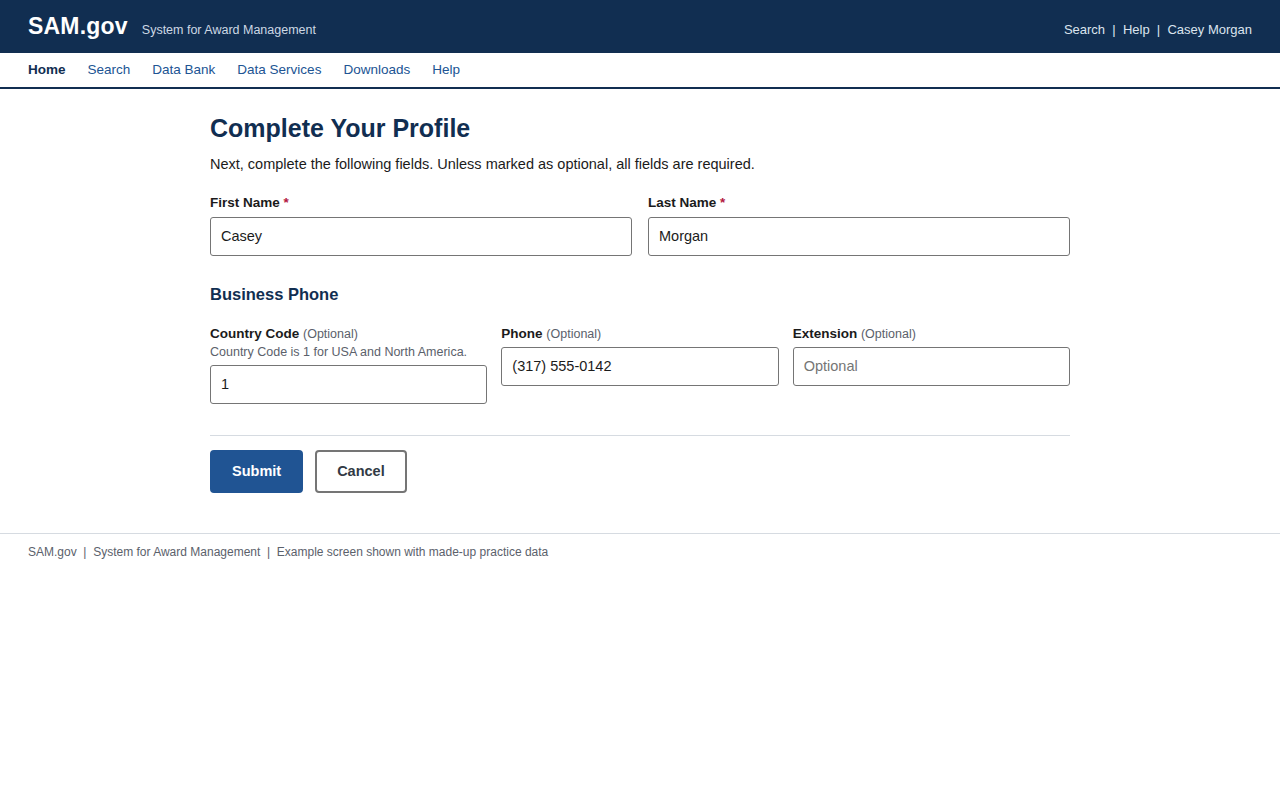
SAM.gov, Complete Your Profile page
The page shows first name and last name fields, then a Business Phone area marked Optional, with country code, phone, and extension fields, plus Submit and Cancel buttons.
When you do this step for real, this is the screen waiting for you on the site. Read it over, then use the practice screen below to learn the step by doing it safely first.
Practice with the example person from the card. The business phone is optional on the real screen, so only the name is required here. The country code may stay blank; if you fill it in, the code is 1.
Example company card: Sunrise Business Solutions Inc (all made up)
| Legal business name | Sunrise Business Solutions Inc |
| What it does | Ambulance services |
| Physical address | 4120 Meridian Crossing, Suite 210, Indianapolis, IN 46204 |
| Start date | March 14, 2019 (date of incorporation, Indiana) |
| Fiscal year end | December 31 |
| Owner and president | Casey Morgan |
A quick check on this one screen. Answer every question correctly to mark this screen complete. You can move on with Next at any time, finished or not, but the screen only counts as complete once its practice and this check are both done. You can try again if you miss one.
Whose name goes on the SAM.gov user profile, yours or the company's?
Which field on this screen is optional?
On the real profile form, enter your own legal name and contact details: you, the person, not the company. Your company gets its own information later, in the entity registration itself.
Screen 9: SAM.gov: Request a role (optional step)
This optional screen lets you request a role with an entity that already exists in SAM.gov. A role is a permission level that lets a person work on an entity's record.
If you are here to register a brand new entity, this is not your step. The screen itself says you may skip it and request a role later.
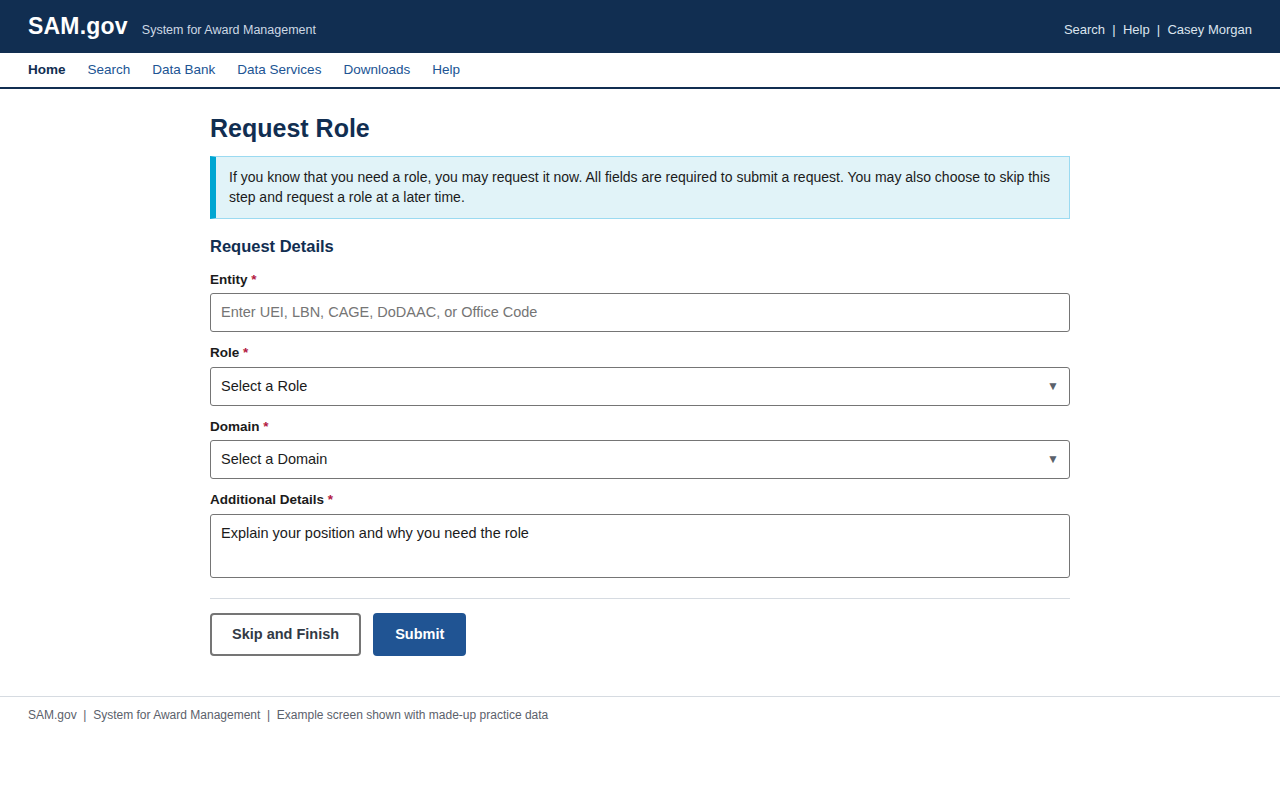
SAM.gov, Request Role page
The page shows fields for the entity, the role, and the domain, an Additional Details box, and Skip and Finish and Submit buttons.
When you do this step for real, this is the screen waiting for you on the site. Read it over, then use the practice screen below to learn the step by doing it safely first.
Practice the decision. The scenario: you are registering a brand new entity and it does not exist in SAM.gov yet. Pick what to do on this screen.
A quick check on this one screen. Answer every question correctly to mark this screen complete. You can move on with Next at any time, finished or not, but the screen only counts as complete once its practice and this check are both done. You can try again if you miss one.
What is a role in SAM.gov, and when would you request one?
Can you skip this step and request a role later?
First time registrants creating a new entity skip this screen. Come back to it later only if another person needs a role on your entity, or you need a role on an entity that already exists.
Screen 10: SAM.gov: Your Workspace
The Workspace is your signed in home base in SAM.gov. Requests, notifications, and everything about your entities live here.
The Entity Information area shows counters for your registrations by status, and three action cards: add a new entity, gain access to an entity registration, and renew or update an entity.
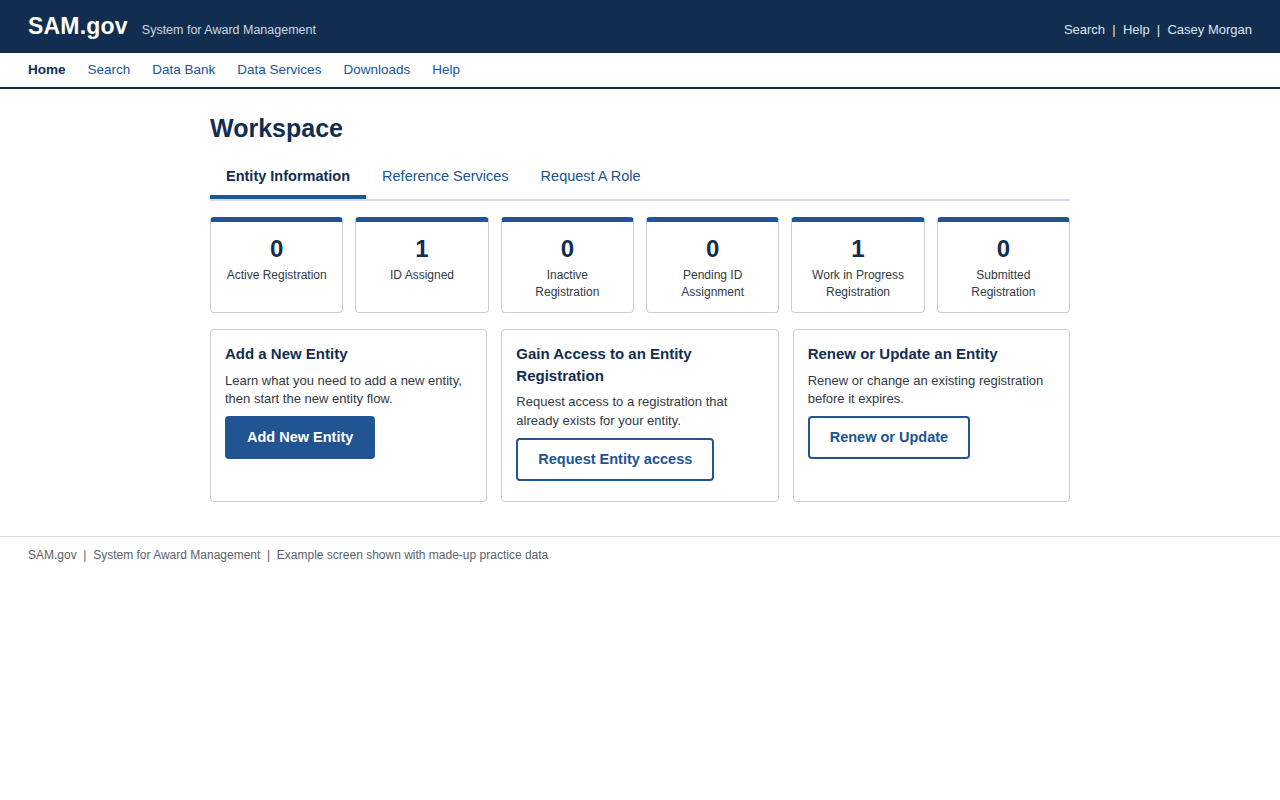
SAM.gov, Workspace, Entity Information
The page shows status counters such as Active Registration and Work in Progress Registration, plus cards for Add New Entity, Request Entity access, and Renew or Update.
When you do this step for real, this is the screen waiting for you on the site. Read it over, then use the practice screen below to learn the step by doing it safely first.
Practice the Workspace. The scenario: you are starting a brand new entity registration. Pick the card that starts it.
A quick check on this one screen. Answer every question correctly to mark this screen complete. You can move on with Next at any time, finished or not, but the screen only counts as complete once its practice and this check are both done. You can try again if you miss one.
What is the difference between Work in Progress, Submitted, and Active?
Where do you resume a registration you did not finish?
Bookmark your Workspace at sam.gov. It is where you resume a registration in progress, read notifications, and check whether your registration is Submitted or Active.
Screen 11: SAM.gov public home: Register your entity or get a Unique Entity ID
This is the public SAM.gov home panel, the one a visitor sees before signing in. It is the front door to the whole process.
The panel offers the starting paths: register your entity or get a Unique Entity ID, and renew an entity that is already registered.
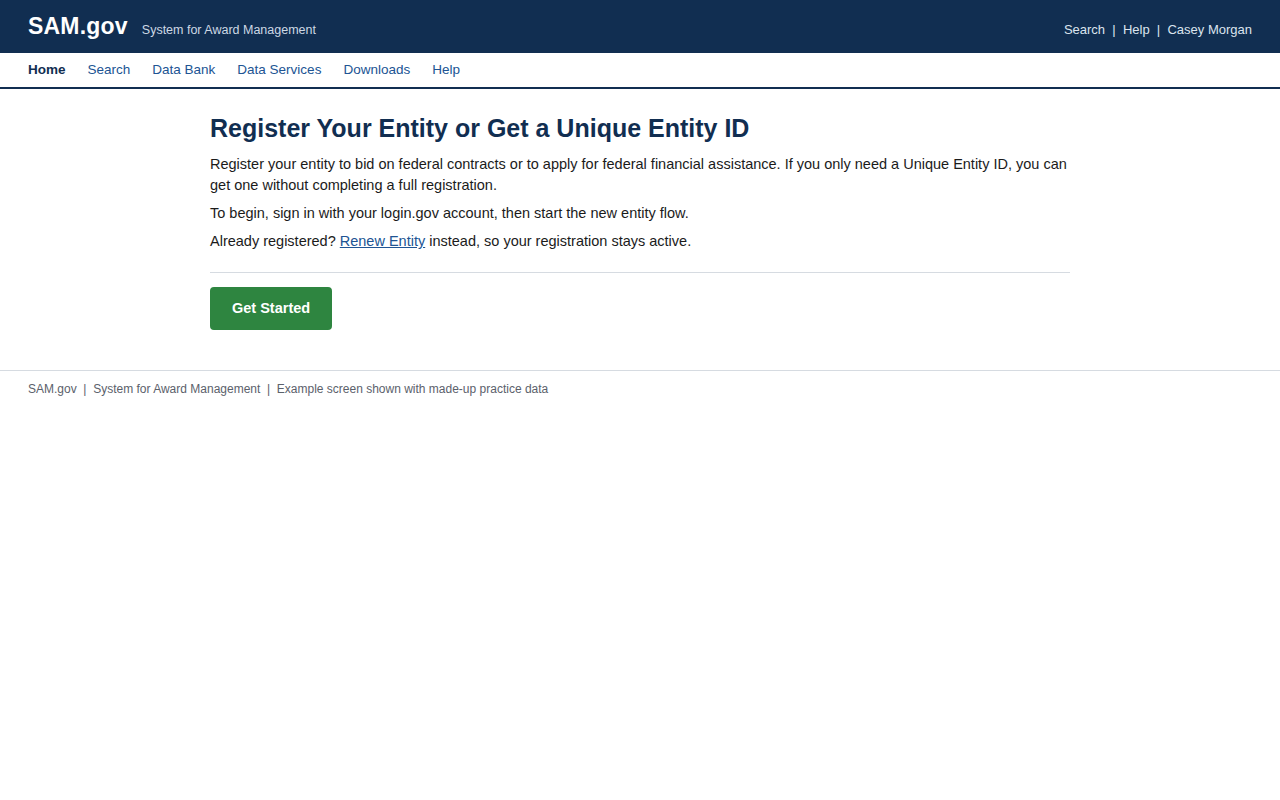
SAM.gov public home, Register Your Entity or Get a Unique Entity ID panel
The panel explains the two starting paths and shows a green Get Started button, with a Renew Entity path for existing registrations.
When you do this step for real, this is the screen waiting for you on the site. Read it over, then use the practice screen below to learn the step by doing it safely first.
Practice the front door. Pick the button that starts a new registration or a new Unique Entity ID.
A quick check on this one screen. Answer every question correctly to mark this screen complete. You can move on with Next at any time, finished or not, but the screen only counts as complete once its practice and this check are both done. You can try again if you miss one.
What are the starting paths on this panel?
This is the real front door: sam.gov, then the Get Started button on the Register Your Entity or Get a Unique Entity ID panel.
Module complete Module Complete
Congratulations. You worked through every screen in this module, practiced each one with the example company, and passed the check on each screen.
Here is what you covered:
- Screen 1: Get your NAICS codes ready before you start
- Screen 2: Login.gov: Create an account
- Screen 3: Login.gov: Your account dashboard
- Screen 4: Sign in to SAM.gov with Login.gov
- Screen 5: Login.gov: Enter your one-time code
- Screen 6: Login.gov: Continue to SAM.gov
- Screen 7: SAM.gov: Agree to the Terms of Use
- Screen 8: SAM.gov: Complete your profile
- Screen 9: SAM.gov: Request a role (optional step)
- Screen 10: SAM.gov: Your Workspace
- Screen 11: SAM.gov public home: Register your entity or get a Unique Entity ID
Your sign in foundation is set. Next, a few short questions help you pick the right registration path before the real form opens.
Pulse Academy | GovCon Mastery Tool. This lesson teaches the registration path. SAM.gov, Login.gov, and the Federal Service Desk are official government services; Pulse Academy is not part of any government agency, and no agency endorses this training.