Back to all modules Definitions: common terms, defined Search the tool

Pulse Academy | GovCon Mastery Tool
SAM Registration: Financial Information
SAM screens 43 to 49 of 92. One screen at a time: see it, learn it, practice it, then answer the screen check to mark the screen complete. Back and Next always work, so you can move in any order.
Screen 43: Financial Information: Section intro
This section provides the details the government needs to pay you and to meet federal reporting requirements.
The screen lists what to have ready: a bank statement or voided check, compensation records, and financial reports if you have them.
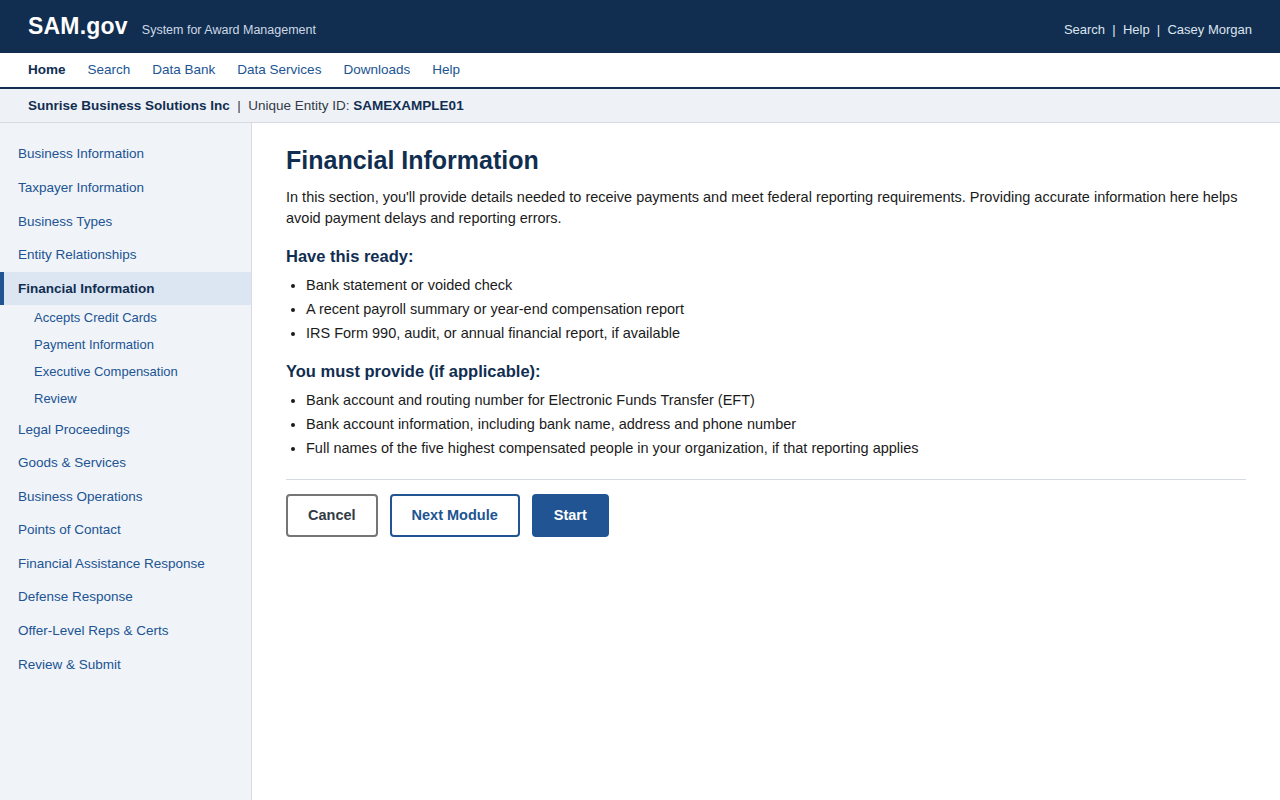
SAM.gov, Financial Information intro page
The page lists what to have ready and what you must provide: bank account information for Electronic Funds Transfer, bank contact details, and the names of your five highest compensated people if that reporting applies.
When you do this step for real, this is the screen waiting for you on the site. Read it over, then use the practice screen below to learn the step by doing it safely first.
Practice getting ready. Check each item once you have it in hand, in the practice sense.
Check each item you will have ready
A quick check on this one screen. Answer every question correctly to mark this screen complete. You can move on with Next at any time, finished or not, but the screen only counts as complete once its practice and this check are both done. You can try again if you miss one.
What should you have in hand before starting this section?
Why does the screen say accuracy here helps avoid payment delays and reporting errors?
Before the real section, get a bank statement or a voided check for the business account where contract payments should land. Routing and account numbers get copied from paper, never typed from memory.
Screen 44: Accepts Credit Cards
A short screen with one question: does your company accept credit cards?
The reason is on the screen. Federal employees use government credit cards to pay for some purchases, and the government wants to know if your company can take one.
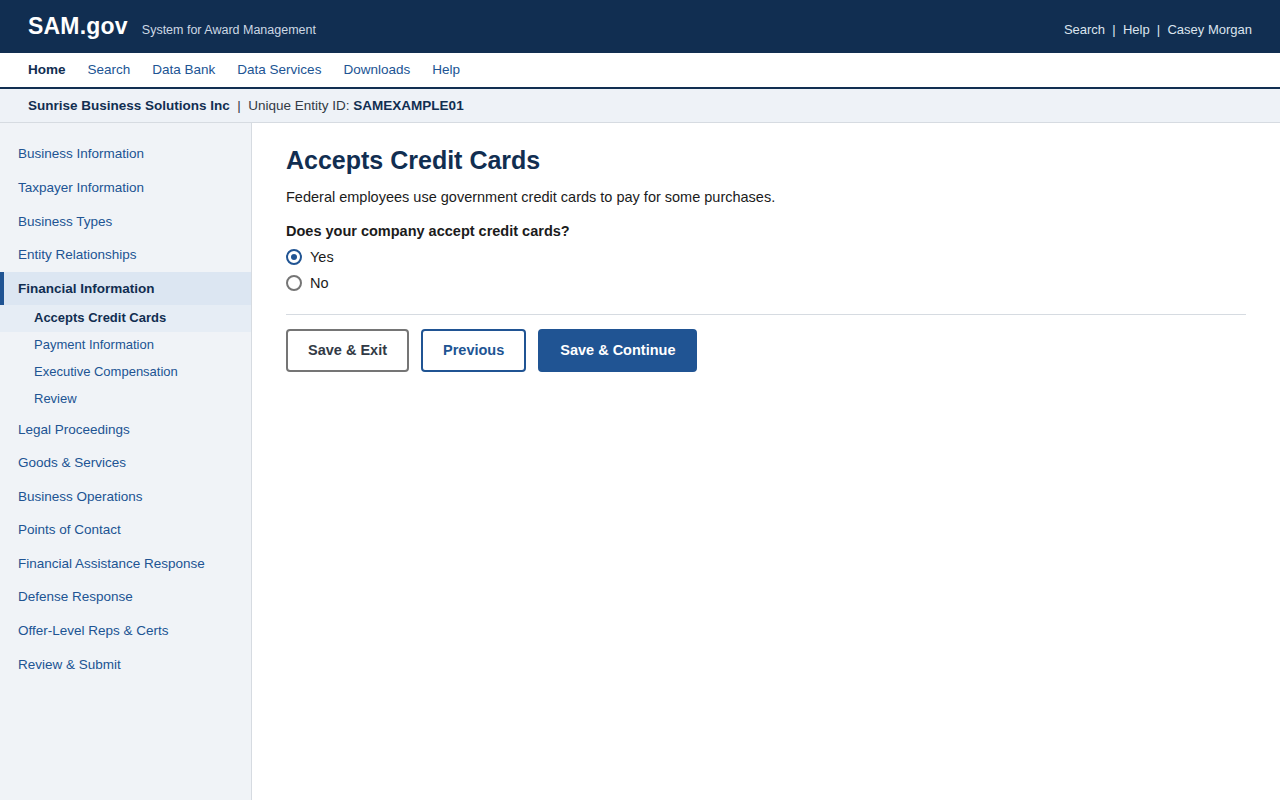
SAM.gov, Accepts Credit Cards page
The question Does your company accept credit cards, with Yes and No choices.
When you do this step for real, this is the screen waiting for you on the site. Read it over, then use the practice screen below to learn the step by doing it safely first.
“Accept credit cards as a method of payment (yes or no).”
The words above are the form text you will see, quoted from: Federal Service Desk (FSD) Entity Registration Checklist, Core Data item 7, Financial Information. The live screen phrases it: Does your company accept credit cards?. The teaching in this lesson is written in our own words.Practice for Sunrise. Practice fact: Sunrise bills insurers and patients and accepts credit cards at its office. Answer for Sunrise.
Pick one: Does your company accept credit cards?
A quick check on this one screen. Answer every question correctly to mark this screen complete. You can move on with Next at any time, finished or not, but the screen only counts as complete once its practice and this check are both done. You can try again if you miss one.
Why does the government ask whether you accept credit cards?
On the real question, answer the plain fact about your business today: Yes if you take card payments, No if you never have. Either answer is fine.
Screen 45: Payment Information: Your account list
This screen is where your payment accounts live. At first it is empty, and the screen tells you plainly: you will need to add a financial account, and the government will use it to pay you for work on government contracts and grants.
After an account is saved, it is listed here as your primary account, with its EFT indicator.
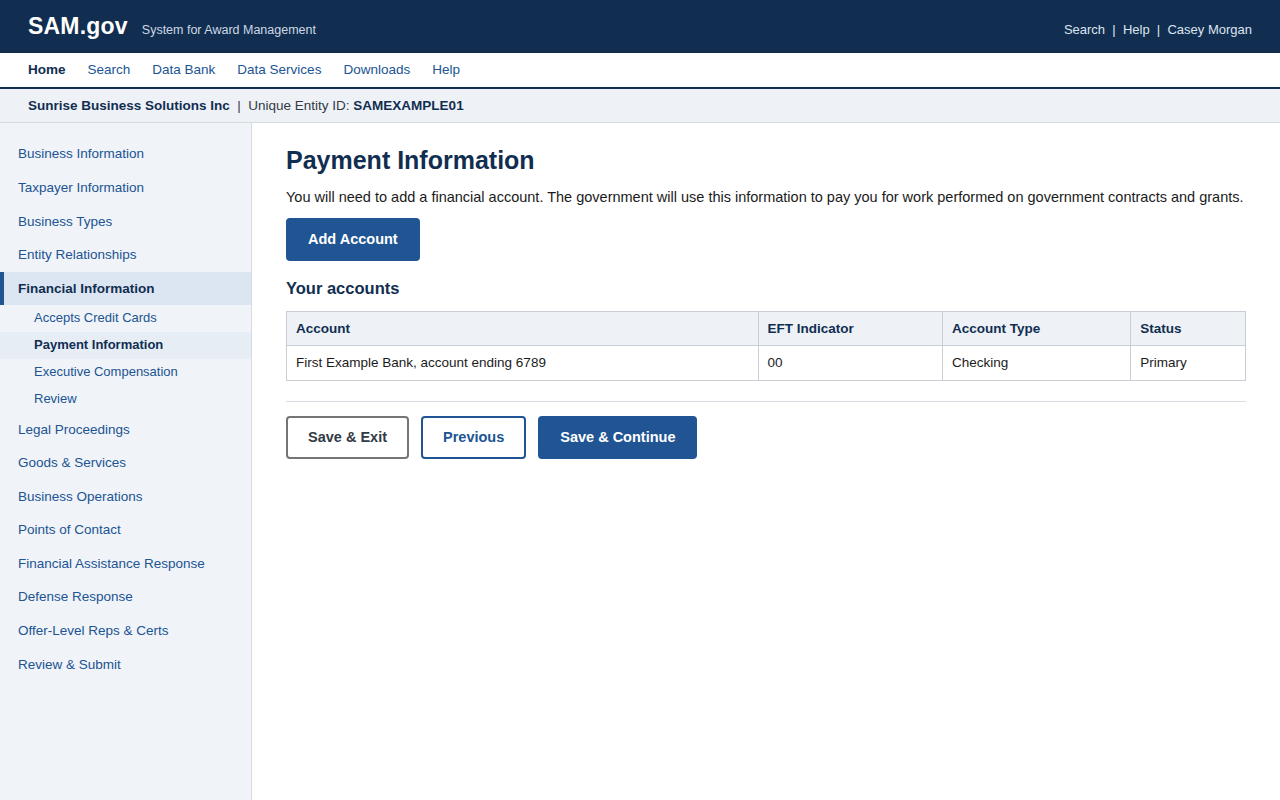
SAM.gov, Payment Information page
An Add Account button, and after saving, the account listed as primary with its EFT indicator.
When you do this step for real, this is the screen waiting for you on the site. Read it over, then use the practice screen below to learn the step by doing it safely first.
Practice the first move on an empty account list. Pick the control that adds your payment account.
A quick check on this one screen. Answer every question correctly to mark this screen complete. You can move on with Next at any time, finished or not, but the screen only counts as complete once its practice and this check are both done. You can try again if you miss one.
How will the government pay you for work performed, and to what, exactly?
What happens after an account is saved?
On the real screen, choose Add Account to start entering the business account where government payments should go. One business checking account is enough for most small businesses.
Screen 46: Banking Information: Add the account
This form takes the bank account details: routing number, account number entered twice, account type, and the financial institution, which fills in from the routing number.
The walkthrough behind this lesson shows a real moment here: a validation banner stopped the save because one field was wrong, an email format error. Reading the banner, fixing the field, and saving again is the normal recovery.
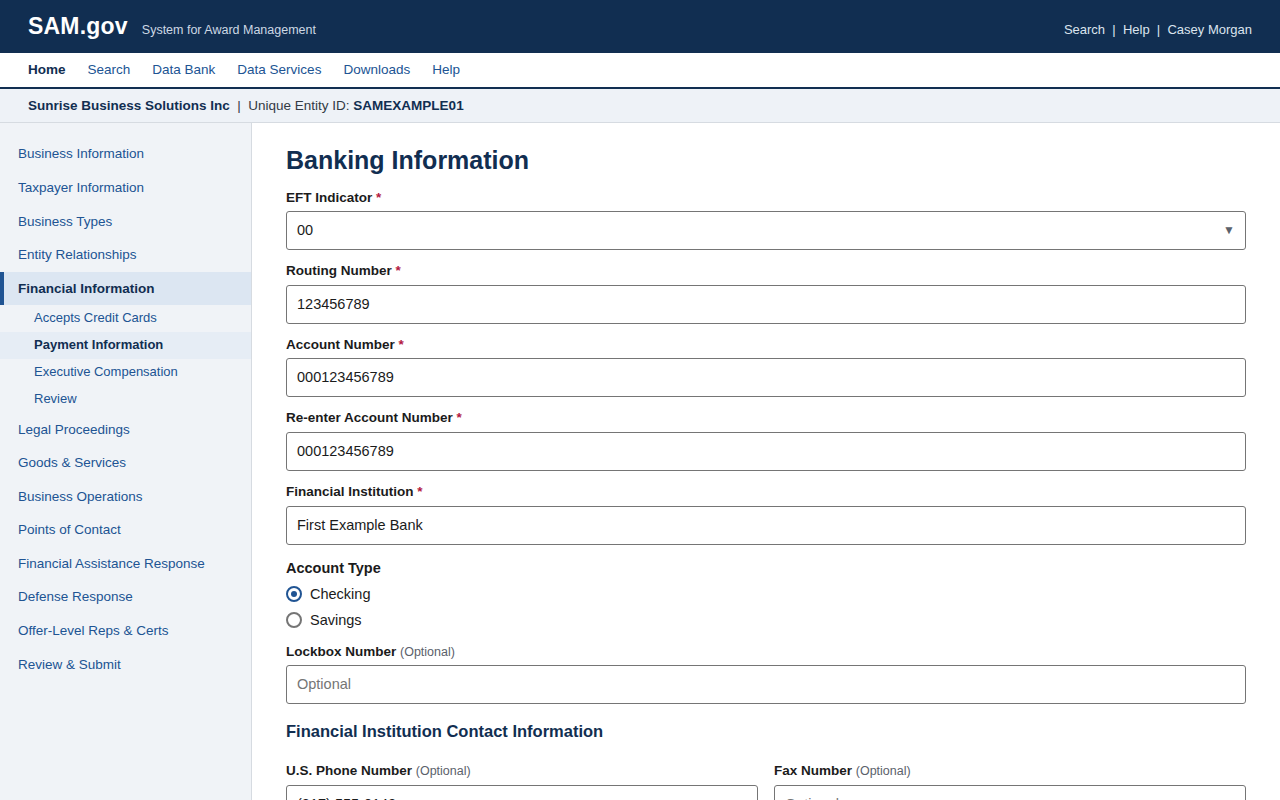
SAM.gov, Banking Information form
Fields in order: EFT Indicator, Routing Number, Account Number, Re-enter Account Number, Financial Institution, Account Type (Checking or Savings), optional Lockbox Number, and optional institution contact fields.
When you do this step for real, this is the screen waiting for you on the site. Read it over, then use the practice screen below to learn the step by doing it safely first.
Practice only, with made up numbers from the card. Copy the routing and account numbers exactly, re-enter the account number, and pick the account type.
Example company card: Sunrise Business Solutions Inc (all made up)
| Legal business name | Sunrise Business Solutions Inc |
| What it does | Ambulance services |
| Physical address | 4120 Meridian Crossing, Suite 210, Indianapolis, IN 46204 |
| Ownership | Owned by its founder, Casey Morgan. No other entity owns or controls Sunrise. |
| Bank (made up) | First Example Bank, routing 123456789, account 0007654321, checking |
Pick one: Account Type
A quick check on this one screen. Answer every question correctly to mark this screen complete. You can move on with Next at any time, finished or not, but the screen only counts as complete once its practice and this check are both done. You can try again if you miss one.
On a check, which number is the routing number and which is the account number, and why must the re-entered account number match exactly?
The walkthrough shows a validation banner stopping the save on this form. What do you do when it appears?
On the real form, copy the routing number and account number from a check or bank statement, and type the account number twice exactly. Real bank details belong only on the real SAM.gov form, never in practice screens or emails.
Screen 47: Payment Address
Attached to the account is a payment address, also called the remittance address: the name and address attached to payments for your entity.
It is a separate idea from your physical address and your mailing address, even when all three happen to be the same place.
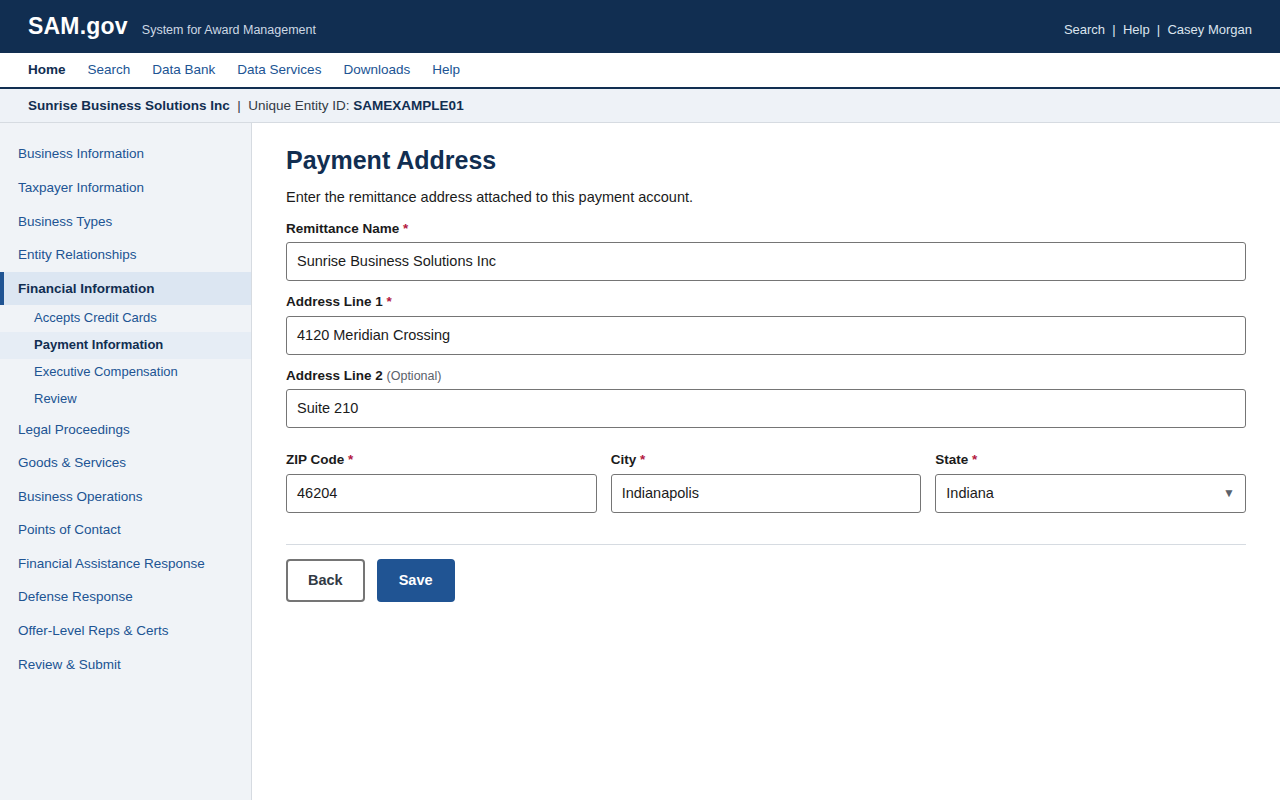
SAM.gov, Payment Address form
Name and address fields for the remittance address attached to the payment account, with Save and Back controls in the account sub-flow.
When you do this step for real, this is the screen waiting for you on the site. Read it over, then use the practice screen below to learn the step by doing it safely first.
Practice for Sunrise. Sunrise's payments are tied to its physical address. Enter the remittance name and address from the card.
Example company card: Sunrise Business Solutions Inc (all made up)
| Legal business name | Sunrise Business Solutions Inc |
| What it does | Ambulance services |
| Physical address | 4120 Meridian Crossing, Suite 210, Indianapolis, IN 46204 |
| Ownership | Owned by its founder, Casey Morgan. No other entity owns or controls Sunrise. |
| Bank (made up) | First Example Bank, routing 123456789, account 0007654321, checking |
A quick check on this one screen. Answer every question correctly to mark this screen complete. You can move on with Next at any time, finished or not, but the screen only counts as complete once its practice and this check are both done. You can try again if you miss one.
How is the remittance (payment) address different from your physical address and your mailing address?
On the real step, enter the remittance name and address tied to your payments. For most small businesses it is the business address; use a different address only when payments are genuinely handled elsewhere.
Screen 48: Executive Compensation
This screen decides whether your entity must report the pay of its top five executives. If reporting is required, the information becomes public on USAspending.gov, as part of federal transparency rules.
The screen in the walkthrough shows the dollar question. The official checklist shows the full test, and it has three gates, not one.
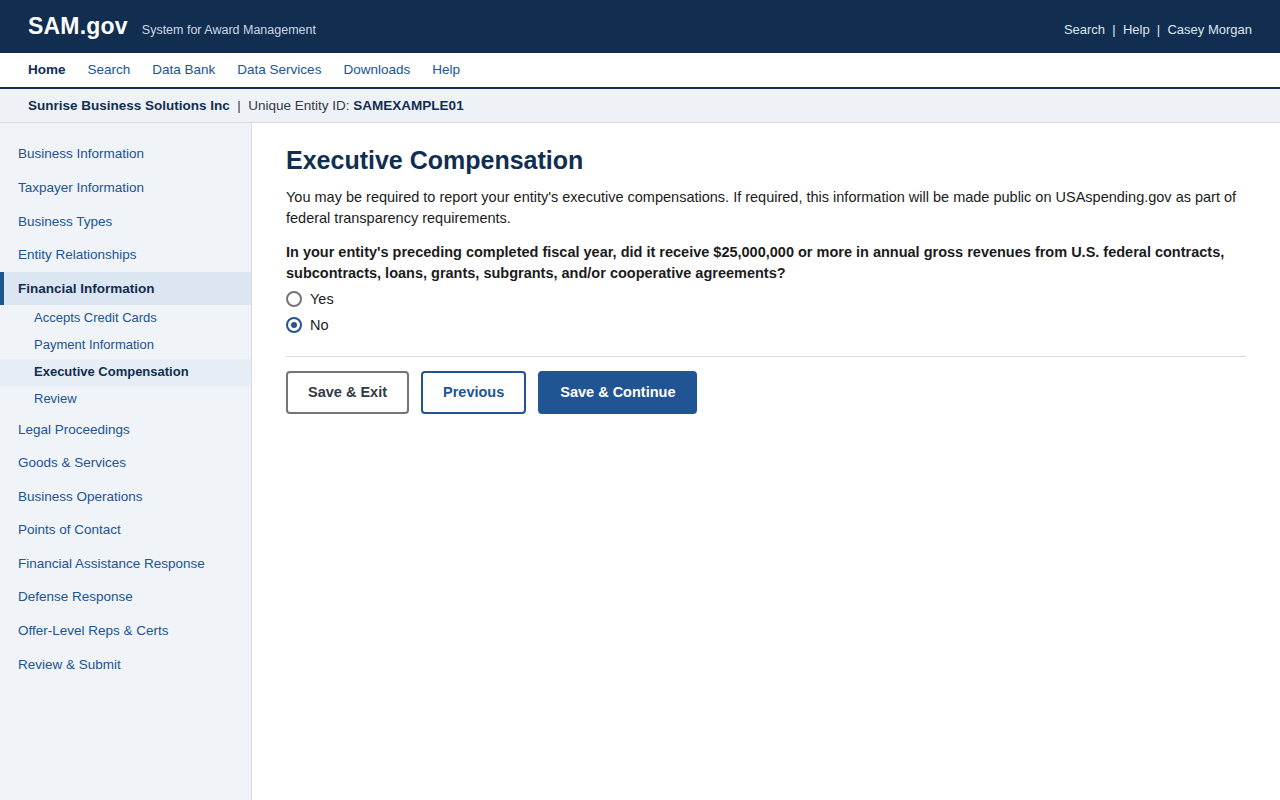
SAM.gov, Executive Compensation page
The question about whether the entity received 25,000,000 dollars or more in annual gross revenues from U.S. federal sources in the preceding completed fiscal year, with Yes and No choices.
When you do this step for real, this is the screen waiting for you on the site. Read it over, then use the practice screen below to learn the step by doing it safely first.
“Answer yes if in the last fiscal year: 80% or more of your organization's revenue come from federal sources (e.g., contracts, grants, loans, etc.); your total revenue from federal sources exceeded $25 million.” Third question: “Does the public have access to information about the compensation of the senior executives in your business or organization? (yes or no)” If yes to the first two and no to the third: provide names, titles, and total compensation of your top five executive compensated employees.
The words above are the form text you will see, quoted from: FSD Entity Registration Checklist, Core Data item 8, Executive Compensation Questions. The teaching in this lesson is written in our own words.Practice for Sunrise. Sunrise's total revenue last year was under two million dollars, almost none of it federal. Answer the dollar question for Sunrise.
Pick one: In your entity's preceding completed fiscal year, did it receive $25,000,000 or more in annual gross revenues from U.S. federal contracts, subcontracts, loans, grants, subgrants, and/or cooperative agreements?
A quick check on this one screen. Answer every question correctly to mark this screen complete. You can move on with Next at any time, finished or not, but the screen only counts as complete once its practice and this check are both done. You can try again if you miss one.
What are the THREE gates in this step, not just the dollar figure?
A typical small business nowhere near 25 million dollars in federal revenue answers what, and why must it still answer carefully?
On the real screen, work the three gates with your real numbers: the federal share of last year's revenue, whether federal revenue passed 25 million dollars, and whether executive pay is already public. Only Yes, Yes, and No together require reporting your top five executives.
Screen 49: Financial Information: Review
The review screen for Financial Information shows the Payment Information row and the Executive Compensation row, each with an Edit link.
When the section is done, a Financial Information Complete message confirms it.
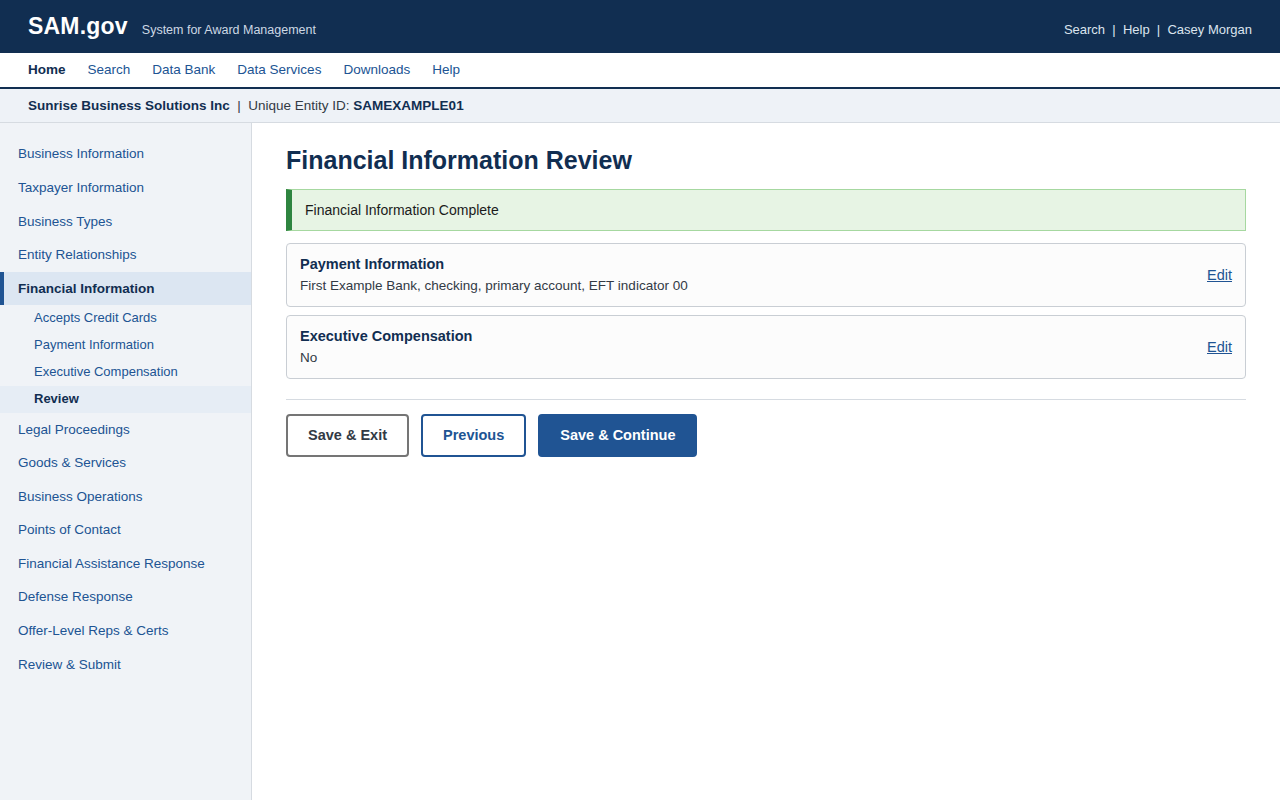
SAM.gov, Financial Information Review page
Rows for Payment Information and Executive Compensation with Edit links, and the section completion confirmation.
When you do this step for real, this is the screen waiting for you on the site. Read it over, then use the practice screen below to learn the step by doing it safely first.
Practice the review. Check both rows.
Check each row after reviewing it
A quick check on this one screen. Answer every question correctly to mark this screen complete. You can move on with Next at any time, finished or not, but the screen only counts as complete once its practice and this check are both done. You can try again if you miss one.
What confirms this section is complete?
On the real review, confirm the primary account shown is the right one and the compensation answer matches your revenue picture. Banking errors found after activation are slow and painful to fix.
Module complete Module Complete
Congratulations. You worked through every screen in this module, practiced each one with the example company, and passed the check on each screen.
Here is what you covered:
- Screen 43: Financial Information: Section intro
- Screen 44: Accepts Credit Cards
- Screen 45: Payment Information: Your account list
- Screen 46: Banking Information: Add the account
- Screen 47: Payment Address
- Screen 48: Executive Compensation
- Screen 49: Financial Information: Review
The government now knows how to pay you, and the compensation questions are answered. Next, Legal Proceedings, the disclosure section.
Pulse Academy | GovCon Mastery Tool. This lesson teaches the registration path. SAM.gov, Login.gov, and the Federal Service Desk are official government services; Pulse Academy is not part of any government agency, and no agency endorses this training.