Back to all modules Definitions: common terms, defined Search the tool

Pulse Academy | GovCon Mastery Tool
SAM Registration: Business Information: Getting Your Unique Entity ID
SAM screens 19 to 27 of 92. One screen at a time: see it, learn it, practice it, then answer the screen check to mark the screen complete. Back and Next always work, so you can move in any order.
Screen 19: Business Information: Section intro
The real form opens here. From now on, a progress list on the left of the screen shows the sections in order, and Business Information is first.
In this section, SAM.gov, the System for Award Management, validates your legal business name and physical address. When validation succeeds, you receive your Unique Entity ID and the rest of the registration unlocks.
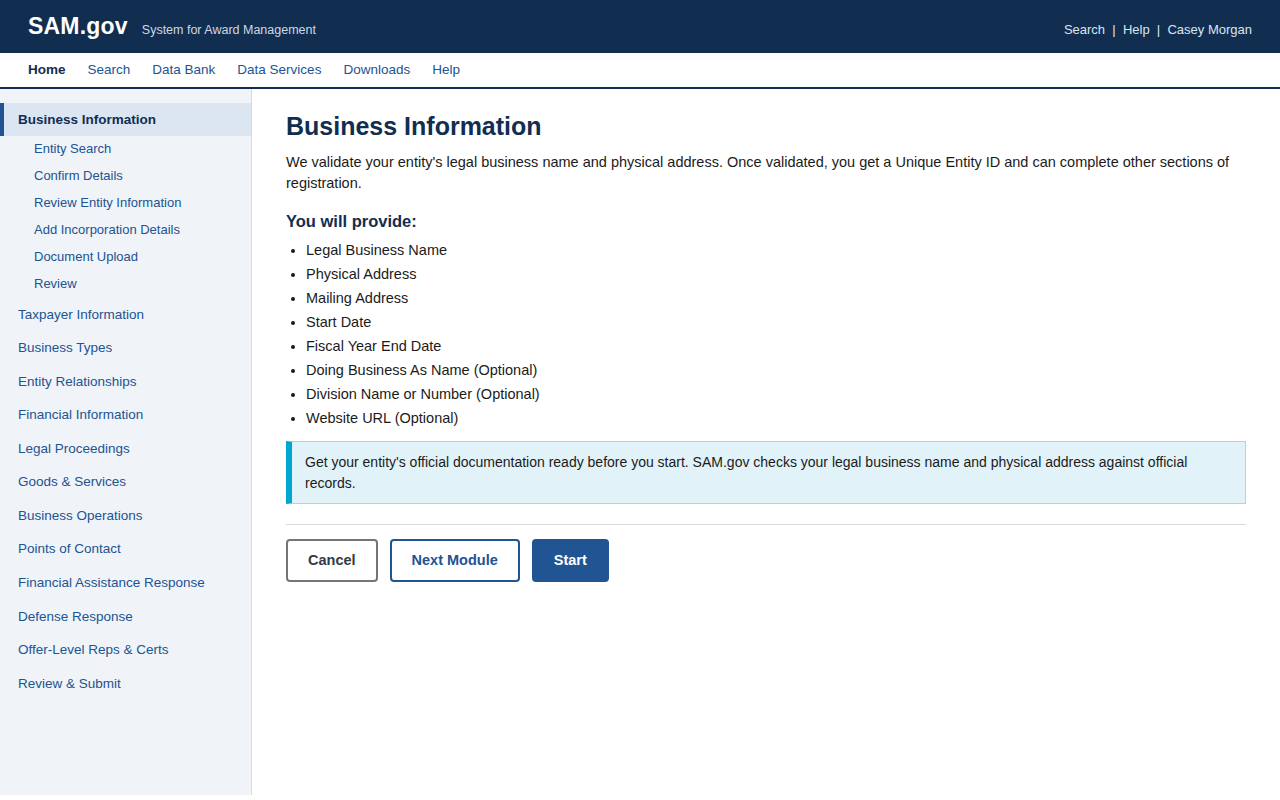
SAM.gov, Business Information intro page
The page lists what you will provide: legal business name, physical address, mailing address, start date, fiscal year end date, and optional items, with a note to get official documentation ready.
When you do this step for real, this is the screen waiting for you on the site. Read it over, then use the practice screen below to learn the step by doing it safely first.
Practice getting ready. Check each item once you understand you will need it in this section.
Check each item you will have ready
A quick check on this one screen. Answer every question correctly to mark this screen complete. You can move on with Next at any time, finished or not, but the screen only counts as complete once its practice and this check are both done. You can try again if you miss one.
What will SAM.gov validate in this section, and what should you have ready before you start?
Before you open the real form, lay out your formation papers and your EIN letter. Every name and address in this section gets copied from those documents, not typed from memory.
Screen 20: Business Information: Entity Search
Here you enter your legal business name and physical address, and SAM.gov searches for an existing entity record that matches.
The search protects you from creating a duplicate record. In the walkthrough behind this lesson, a matching record is found and selected.
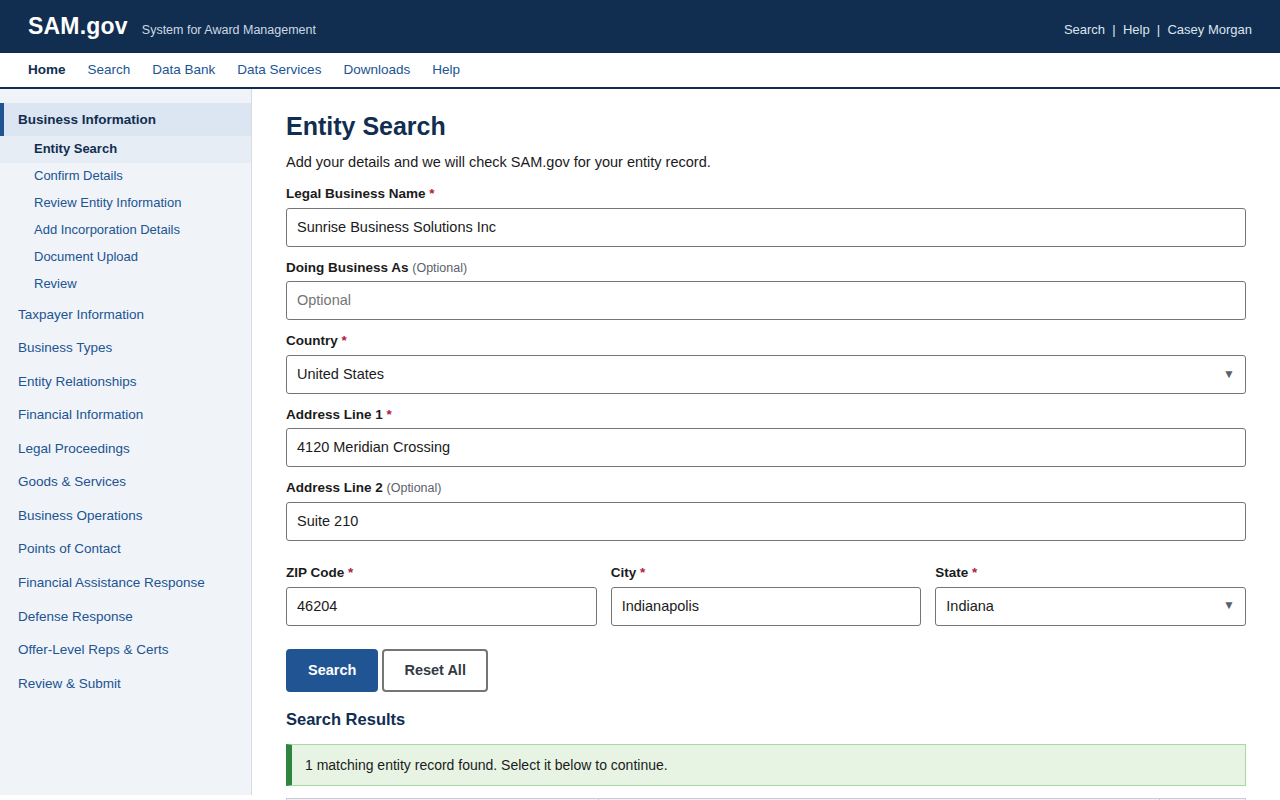
SAM.gov, Entity Search page
Fields for legal business name, Doing Business As (optional), country, address lines, ZIP code, city, and state, with a Search button and a results panel below.
When you do this step for real, this is the screen waiting for you on the site. Read it over, then use the practice screen below to learn the step by doing it safely first.
Practice the search entry for Sunrise. Use the example company card. The state field is a dropdown, like the real screen.
Example company card: Sunrise Business Solutions Inc (all made up)
| Legal business name | Sunrise Business Solutions Inc |
| What it does | Ambulance services |
| Physical address | 4120 Meridian Crossing, Suite 210, Indianapolis, IN 46204 |
| Start date | March 14, 2019 (date of incorporation, Indiana) |
| Fiscal year end | December 31 |
| Owner and president | Casey Morgan |
A quick check on this one screen. Answer every question correctly to mark this screen complete. You can move on with Next at any time, finished or not, but the screen only counts as complete once its practice and this check are both done. You can try again if you miss one.
Why must the legal business name match your official documents exactly?
What happens if SAM.gov finds no matching record for your entity?
On the real screen, this is the first information you type. Have your formation documents open beside you and copy the name exactly.
Screen 21: Business Information: Confirm Entity Details
SAM.gov shows you the entity record it found and asks one question: does anything need correcting?
The screen gives you the examples itself. Check whether your name is missing a suffix like Inc., or whether your address needs a suite number.
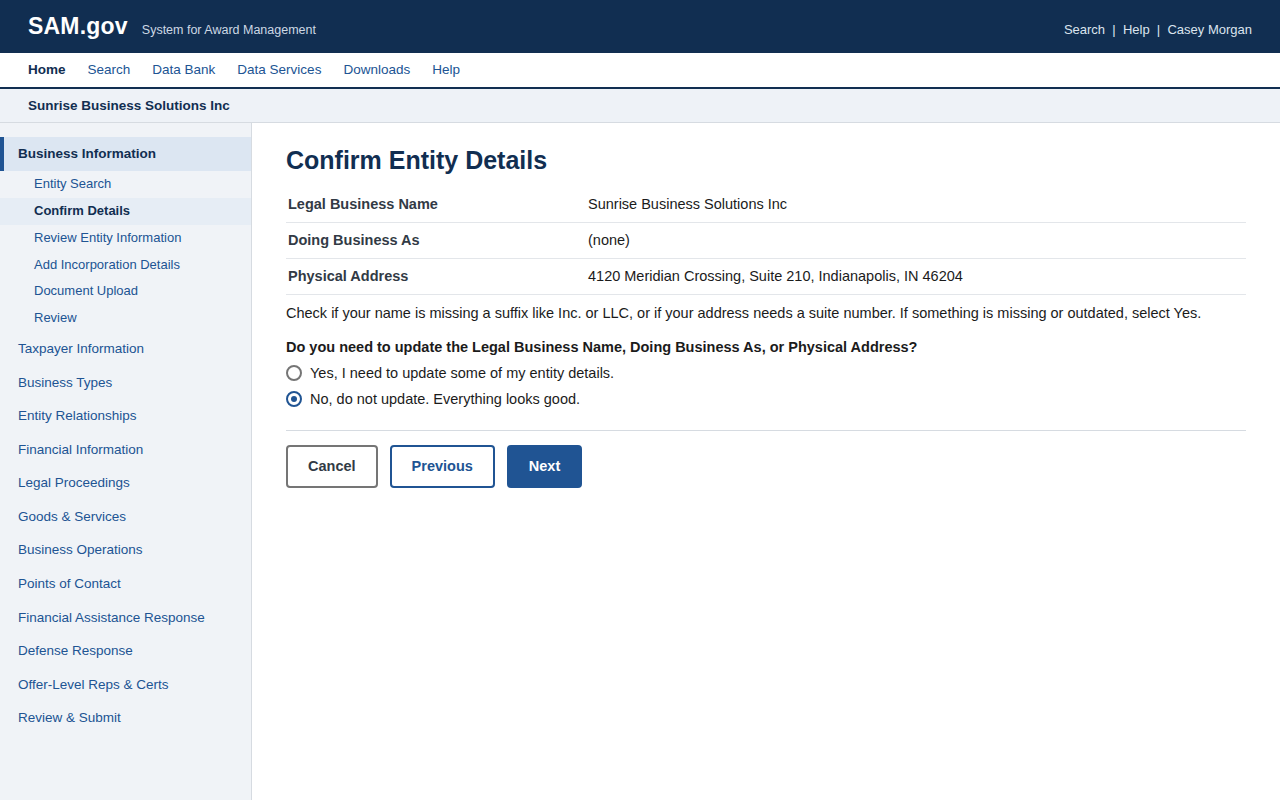
SAM.gov, Confirm Entity Details page
The matched entity details are shown, with the question Do you need to update the Legal Business Name, Doing Business As, or Physical Address, and Yes and No radio choices.
When you do this step for real, this is the screen waiting for you on the site. Read it over, then use the practice screen below to learn the step by doing it safely first.
Practice the proofread. The scenario: the record SAM.gov found reads Sunrise Business Solutions, with no Inc. at the end. Answer the screen's question.
Practice: the record SAM.gov found
| Legal Business Name | Sunrise Business Solutions |
| Physical Address | 4120 Meridian Crossing, Suite 210, Indianapolis, IN 46204 |
| What is wrong | The legal name is missing the Inc. suffix |
Pick one: Do you need to update the Legal Business Name, Doing Business As, or Physical Address?
A quick check on this one screen. Answer every question correctly to mark this screen complete. You can move on with Next at any time, finished or not, but the screen only counts as complete once its practice and this check are both done. You can try again if you miss one.
The record SAM.gov found is missing your Inc. Do you answer Yes (update) or No (everything looks good)?
On the real screen, proofread the record SAM.gov found. If anything needs correcting, answer Yes and update it there; accepting a small error here creates a validation problem later.
Screen 22: Business Information: Review Entity Information
This screen confirms or corrects your entity's public details and your mailing address.
Some fields are optional: Doing Business As, website, and division name and number. The mailing address block lets you say the mailing address is the same as the physical address.
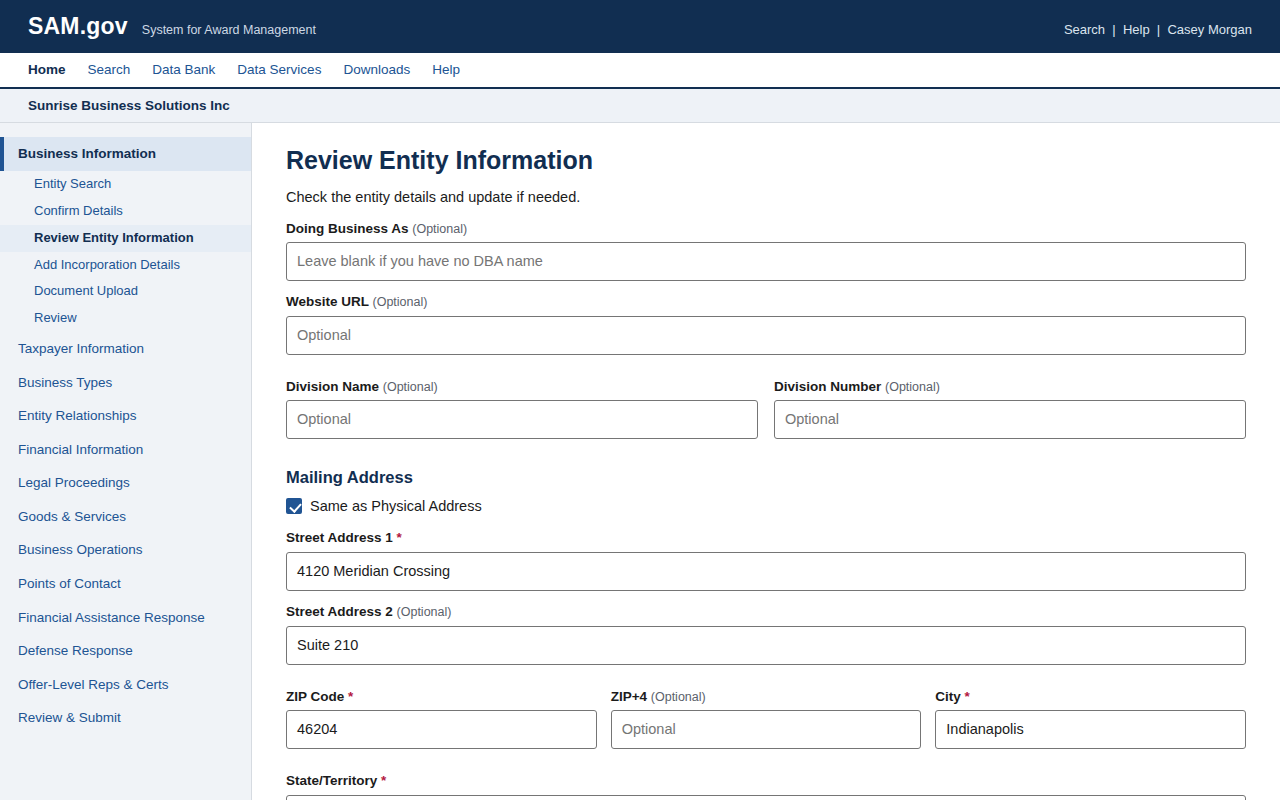
SAM.gov, Review Entity Information page
Fields for Doing Business As, Website URL, Division Name and Number, then a Mailing Address block with a Same as Physical Address checkbox and address fields, and Save and Continue buttons.
When you do this step for real, this is the screen waiting for you on the site. Read it over, then use the practice screen below to learn the step by doing it safely first.
Practice for Sunrise. Sunrise receives its mail at its physical address. Check the same as box, and leave the optional Doing Business As field empty, the way Sunrise would.
Check the box that fits Sunrise
A quick check on this one screen. Answer every question correctly to mark this screen complete. You can move on with Next at any time, finished or not, but the screen only counts as complete once its practice and this check are both done. You can try again if you miss one.
When is the mailing address different from the physical address, and how do you tell SAM.gov they are the same?
Which fields on this screen are optional?
On the real screen, confirm your public details and mailing address. Check Same as Physical Address if mail reaches you there, and leave optional fields blank when they do not apply.
Screen 23: Business Information: Entity Dates and Incorporation Details
This screen asks when your entity was legally formed, when its fiscal year ends, and where it was incorporated.
The start date can be your date of incorporation, your established date, or when you formally began doing business.
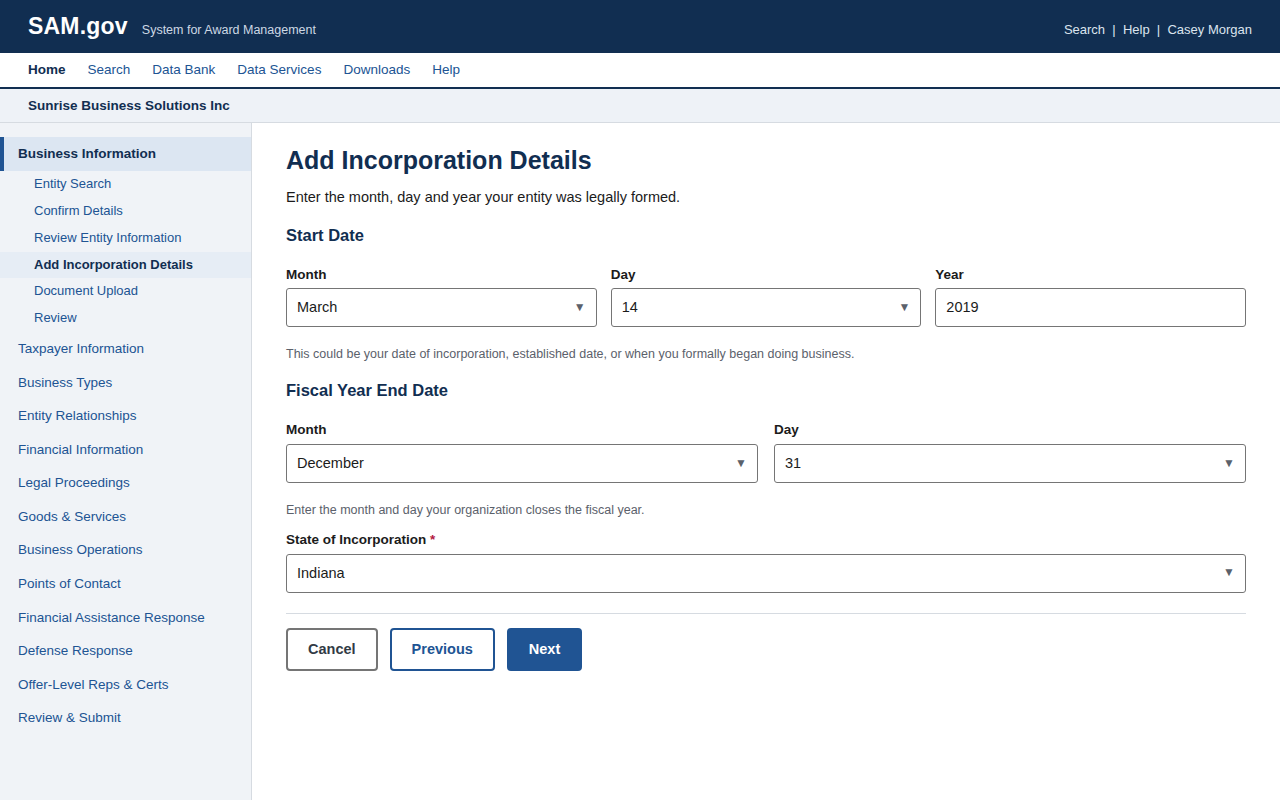
SAM.gov, Add Incorporation Details page
Start Date month, day, and year fields; Fiscal Year End month and day fields; and a State of Incorporation dropdown.
When you do this step for real, this is the screen waiting for you on the site. Read it over, then use the practice screen below to learn the step by doing it safely first.
Practice for Sunrise using the example company card. Pick each part of the dates and the state of incorporation from the dropdowns.
Example company card: Sunrise Business Solutions Inc (all made up)
| Legal business name | Sunrise Business Solutions Inc |
| What it does | Ambulance services |
| Physical address | 4120 Meridian Crossing, Suite 210, Indianapolis, IN 46204 |
| Start date | March 14, 2019 (date of incorporation, Indiana) |
| Fiscal year end | December 31 |
| Owner and president | Casey Morgan |
A quick check on this one screen. Answer every question correctly to mark this screen complete. You can move on with Next at any time, finished or not, but the screen only counts as complete once its practice and this check are both done. You can try again if you miss one.
Where do you find your entity's start date and fiscal year end date?
On the real screen, take the start date, fiscal year end, and state of incorporation straight from your formation records. These are validation facts, so guesses are expensive.
Screen 24: Business Information: Review and certify for the ID
This is the final review of Business Information before your Unique Entity ID is issued. Every detail you entered is listed, with Edit links.
Two things on this screen deserve a slow read: the notice that your non-sensitive entity information will be searchable on SAM.gov, and the certification checkbox, where you certify under penalty of law that you are authorized to act for this entity.
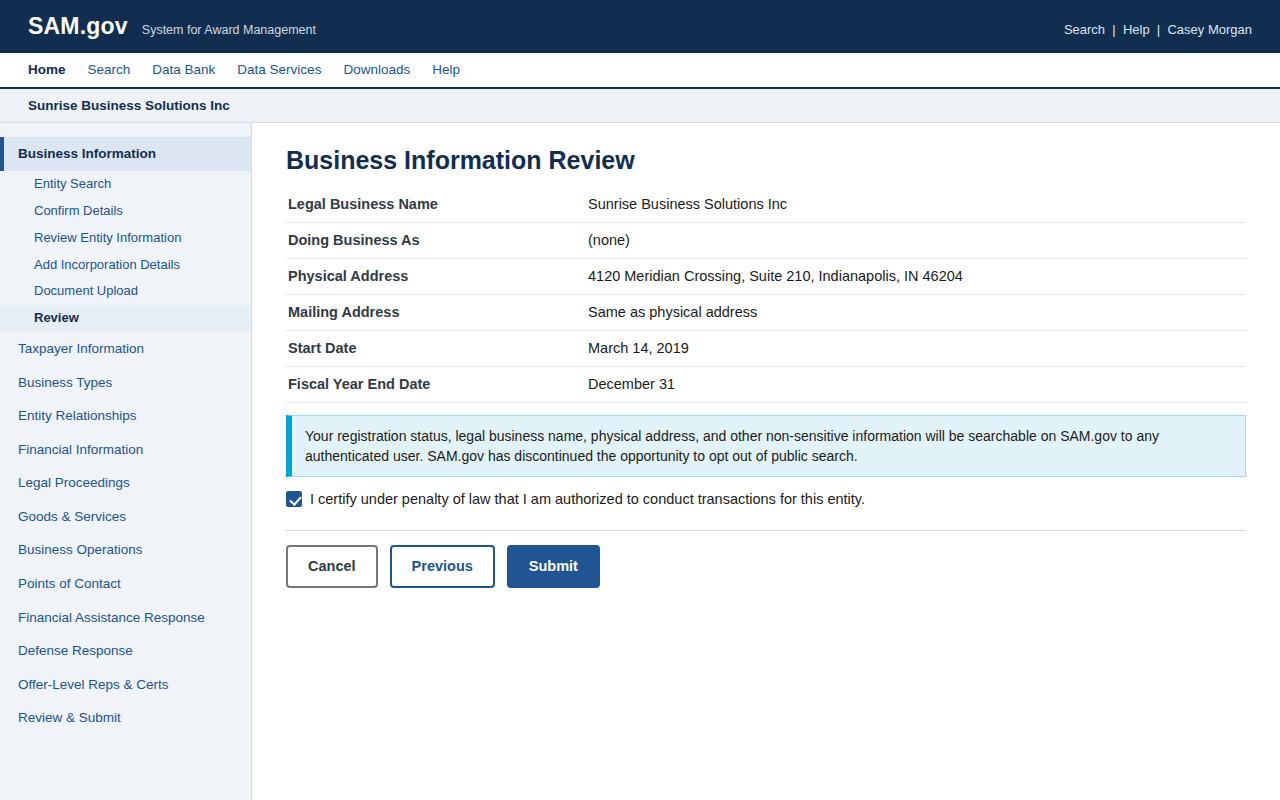
SAM.gov, Business Information Review page
A details list with Edit links, a notice box about public search, a certification checkbox, and a Submit button.
When you do this step for real, this is the screen waiting for you on the site. Read it over, then use the practice screen below to learn the step by doing it safely first.
“I certify under penalty of law that I am authorized to conduct transactions for this entity.”
The words above are the form text you will see, quoted from: the SAM.gov Business Information Review screen; the Federal Service Desk (FSD) Quick Start Guide (KB0012064) describes this certification step. The teaching in this lesson is written in our own words.Practice the finish of this section. Check the certification box, and pick what the notice says about your information.
Checkbox: check it when this is true
Pick one: Under the notice on this screen, your non-sensitive entity information will be
A quick check on this one screen. Answer every question correctly to mark this screen complete. You can move on with Next at any time, finished or not, but the screen only counts as complete once its practice and this check are both done. You can try again if you miss one.
What information about your entity becomes searchable on SAM.gov to any authenticated user?
What are you attesting to when you check the certification box?
On the real review, read every line and use the Edit links for anything off. Understand before you certify: your non-sensitive entity information will be publicly searchable, and the live screen offers no opt out.
Screen 25: Confirmation: Your information will be publicly searchable
When you submit the Business Information review, a confirmation box appears. It states that you understand your entity registration information will be publicly searchable in SAM.gov.
The registration cannot proceed until you confirm. This is the system making sure the public search notice was not missed.
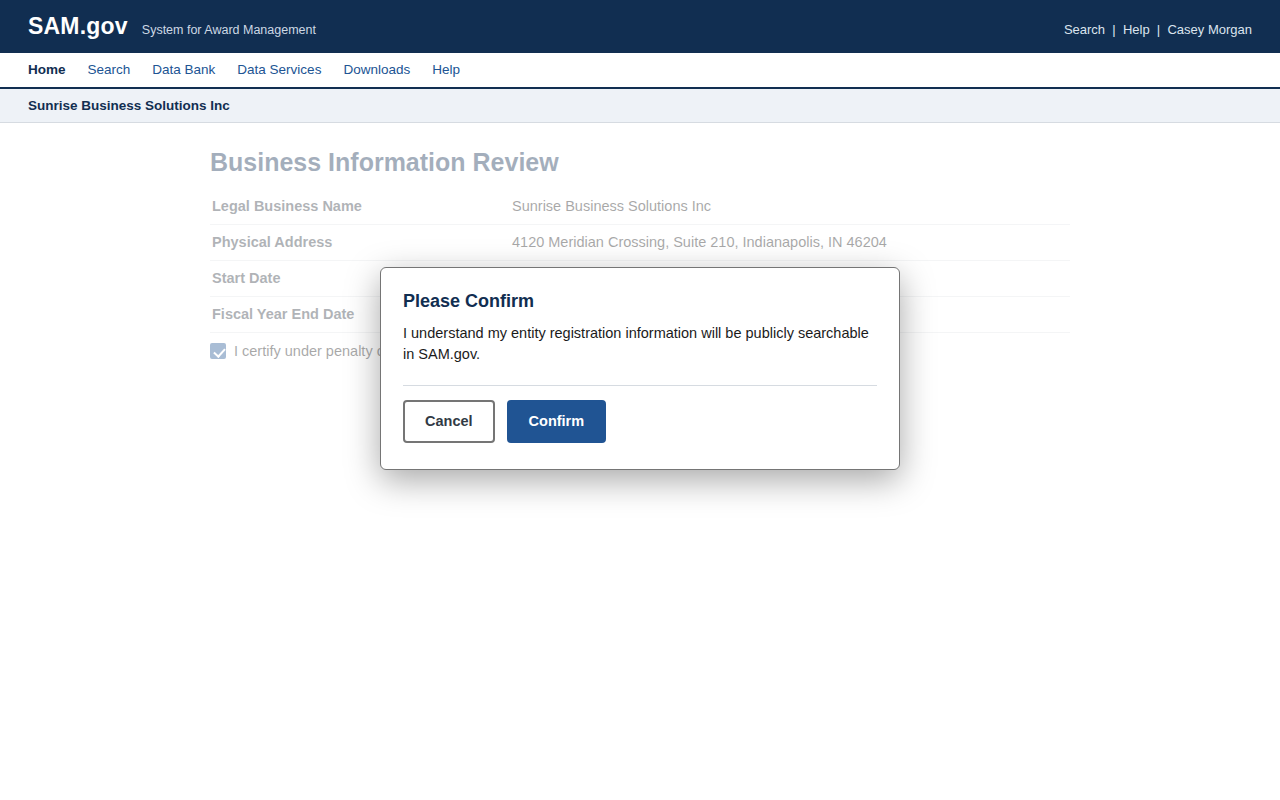
SAM.gov, confirmation modal
A small box with the acknowledgment text and two buttons: Cancel and Confirm.
When you do this step for real, this is the screen waiting for you on the site. Read it over, then use the practice screen below to learn the step by doing it safely first.
Practice the modal. Pick the button that lets the registration proceed.
A quick check on this one screen. Answer every question correctly to mark this screen complete. You can move on with Next at any time, finished or not, but the screen only counts as complete once its practice and this check are both done. You can try again if you miss one.
Can the registration proceed without confirming this acknowledgment?
On the real confirmation box, choose Confirm to submit the Business Information review and move on to receive your Unique Entity ID.
Screen 26: Your Unique Entity ID is assigned
This is the first big milestone. Your entity is validated, and SAM.gov assigns your Unique Entity ID, a 12 character identifier that stays with your entity.
The screen explains the two paths from here. With only a Unique Entity ID, you have an identifier but limited eligibility. A full entity registration is what lets you bid on federal contracts as a prime contractor, and it must be renewed every year to stay active.
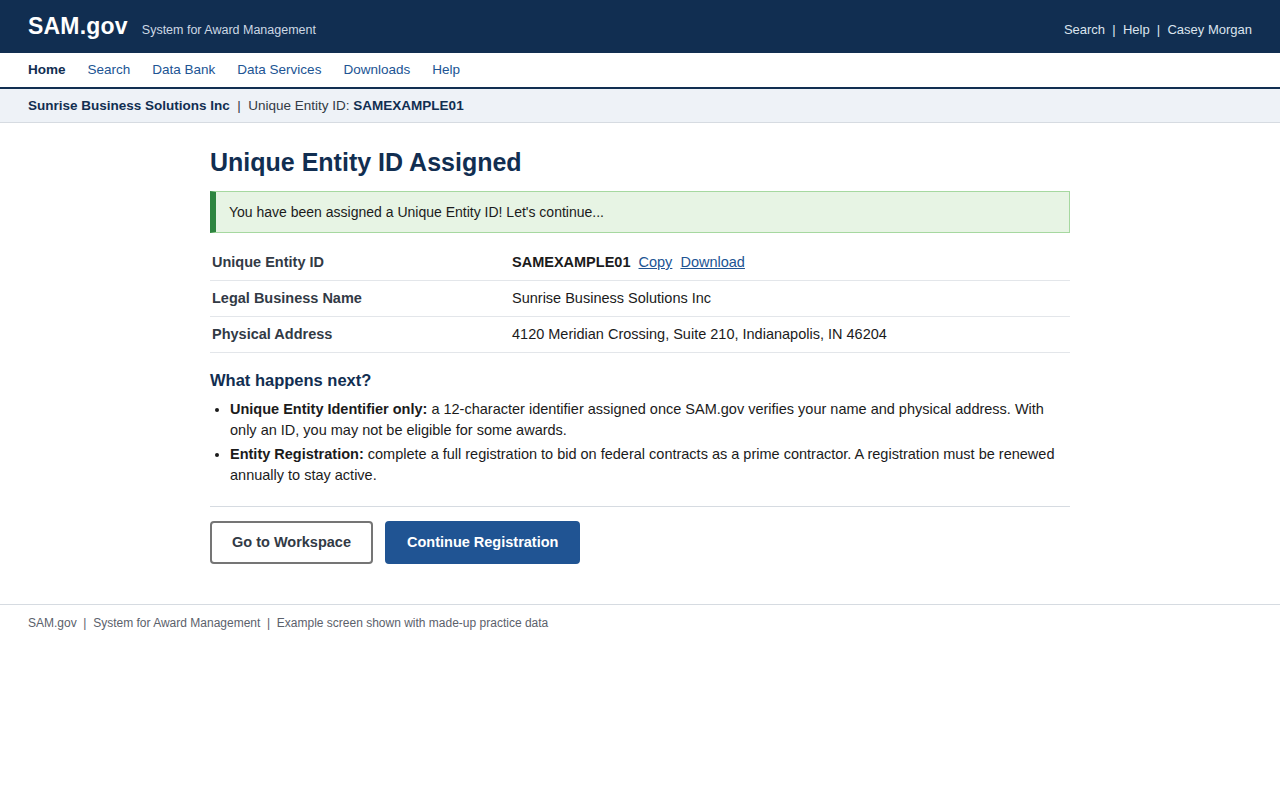
SAM.gov, Unique Entity ID assigned page
The page announces the assigned Unique Entity ID with Copy and Download options, explains what happens next, and offers Go to Workspace and Continue Registration buttons.
When you do this step for real, this is the screen waiting for you on the site. Read it over, then use the practice screen below to learn the step by doing it safely first.
Practice the milestone decision. Sunrise wants to bid on federal contracts. Pick the button Sunrise should choose.
A quick check on this one screen. Answer every question correctly to mark this screen complete. You can move on with Next at any time, finished or not, but the screen only counts as complete once its practice and this check are both done. You can try again if you miss one.
What can you do with only a Unique Entity ID, and what can you NOT do until the full registration is complete and active?
What are the two buttons on this screen, and which one continues the full registration?
On the real screen, copy and download your Unique Entity ID into your company records before you press anything. Then press Continue Registration.
Screen 27: Enter your relationship to the entity
Before the full registration modules open, SAM.gov asks who you are to this entity. There are two choices: you are an employee or officer of the entity, or you are not.
A checkbox then asks you to certify that you are authorized to conduct transactions on behalf of the entity.
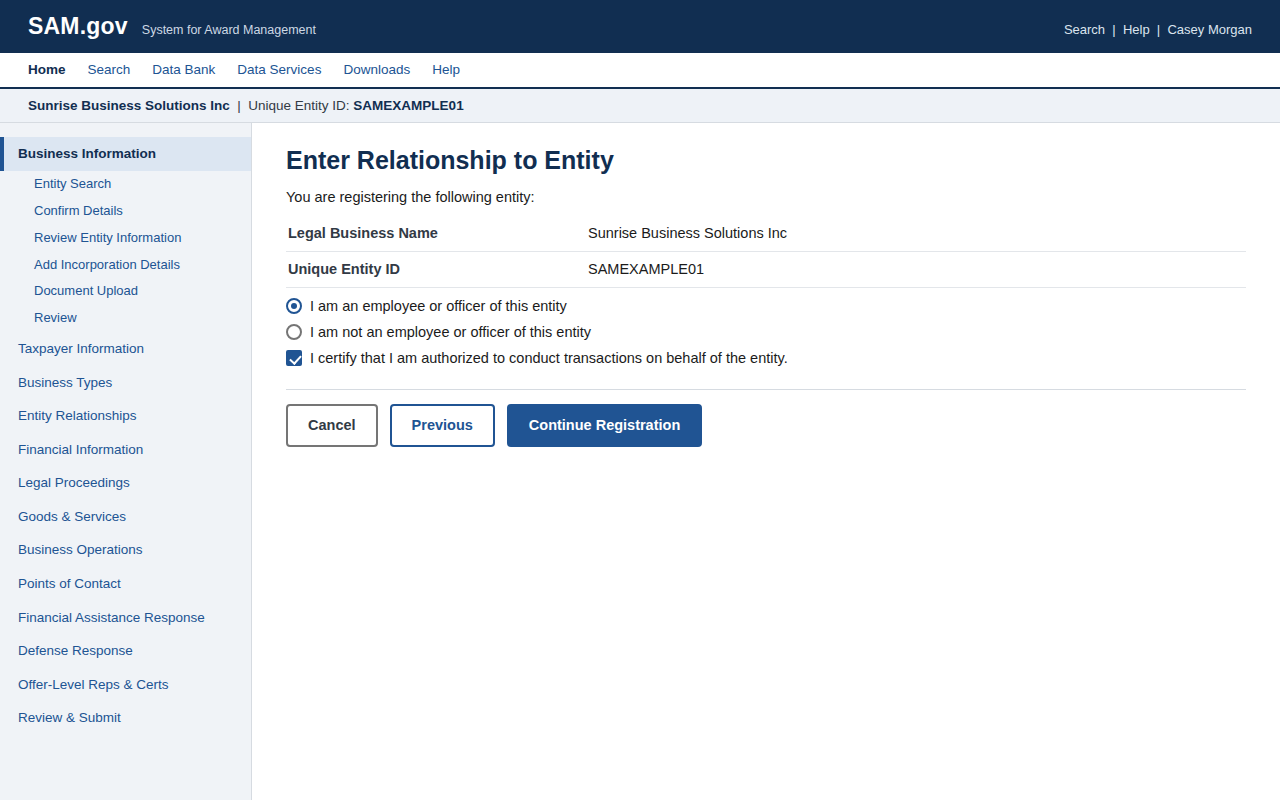
SAM.gov, Enter Relationship to Entity page
The page names the entity being registered, shows the two relationship radio choices, the authorization certification checkbox, and a Continue Registration button.
When you do this step for real, this is the screen waiting for you on the site. Read it over, then use the practice screen below to learn the step by doing it safely first.
Practice for Sunrise. Casey Morgan is Sunrise's owner and president, registering his own company. Pick his relationship and check the certification.
Pick one: your relationship to the entity
Checkbox: check it when this is true
A quick check on this one screen. Answer every question correctly to mark this screen complete. You can move on with Next at any time, finished or not, but the screen only counts as complete once its practice and this check are both done. You can try again if you miss one.
Who should be the person completing a company's registration, and which radio choice fits an owner registering his own company?
On the real screen, an owner registering his own company selects the employee or officer choice. Only continue if you are genuinely authorized to register the entity; the statement is a legal certification.
Module complete Module Complete
Congratulations. You worked through every screen in this module, practiced each one with the example company, and passed the check on each screen.
Here is what you covered:
- Screen 19: Business Information: Section intro
- Screen 20: Business Information: Entity Search
- Screen 21: Business Information: Confirm Entity Details
- Screen 22: Business Information: Review Entity Information
- Screen 23: Business Information: Entity Dates and Incorporation Details
- Screen 24: Business Information: Review and certify for the ID
- Screen 25: Confirmation: Your information will be publicly searchable
- Screen 26: Your Unique Entity ID is assigned
- Screen 27: Enter your relationship to the entity
Your entity is validated and your Unique Entity ID is assigned. Next, Taxpayer Information, where the IRS (Internal Revenue Service) checks your taxpayer name and number.
Pulse Academy | GovCon Mastery Tool. This lesson teaches the registration path. SAM.gov, Login.gov, and the Federal Service Desk are official government services; Pulse Academy is not part of any government agency, and no agency endorses this training.