Back to all modules Definitions: common terms, defined Search the tool
Pulse Academy | GovCon Mastery Tool
SAM Registration: Points of Contact
SAM screens 68 to 71 of 92. One screen at a time: see it, learn it, practice it, then answer the screen check to mark the screen complete. Back and Next always work, so you can move in any order.
Screen 68: Points of Contact: Section intro (Before You Begin)
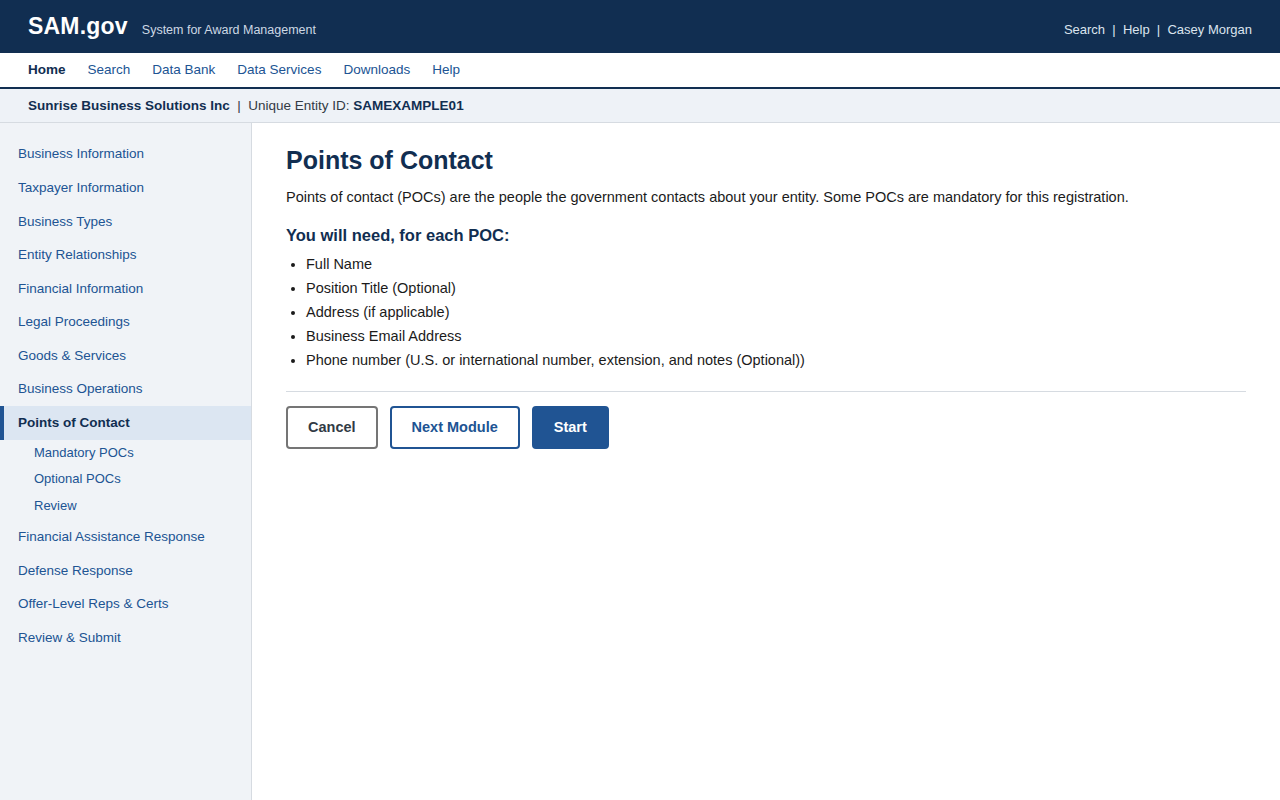
Points of contact, POCs, are the people the government contacts about your entity. This intro lists what you will need for each one.
For every POC: full name, position title (optional), address if applicable, business email address, and phone number, with extension and notes optional.
SAM.gov, Points of Contact intro page (Before You Begin)
The page lists the information needed for each point of contact and explains which POCs are mandatory for this registration.
When you do this step for real, this is the screen waiting for you on the site. Read it over, then use the practice screen below to learn the step by doing it safely first.
Practice getting ready. Check the five pieces of information you will need for every POC.
Check each piece of information you will need
A quick check on this one screen. Answer every question correctly to mark this screen complete. You can move on with Next at any time, finished or not, but the screen only counts as complete once its practice and this check are both done. You can try again if you miss one.
What five pieces of information will you need for every point of contact?
Before the real section, gather full names, titles, business emails, and phone numbers for your points of contact. Use email addresses that a real person monitors every business day.
Screen 69: Mandatory Points of Contact
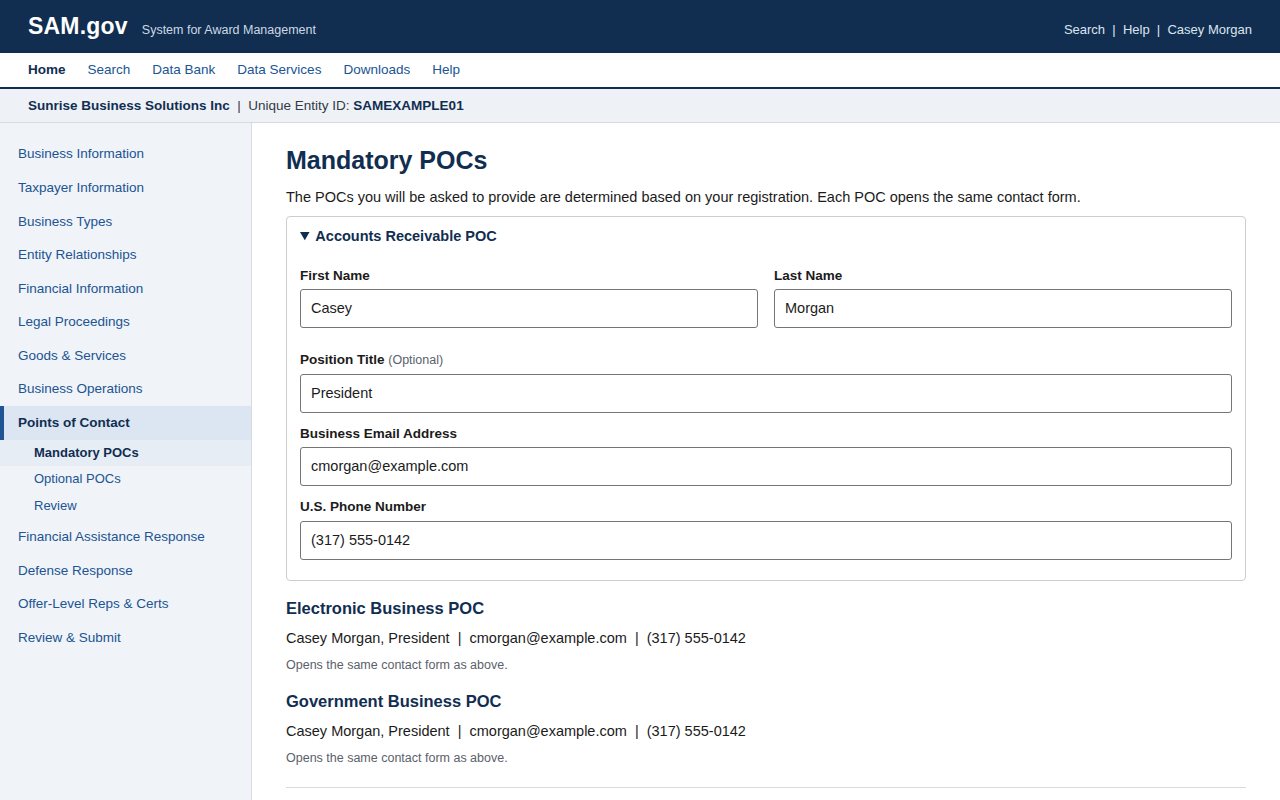
Three points of contact are mandatory for this registration. Accounts Receivable POC: who handles money owed to your entity. Electronic Business POC: who manages this registration electronically. Government Business POC: who handles government business matters.
Each one opens the same contact form. One person may hold more than one role, which is normal in a small business.
SAM.gov, Mandatory POCs page
Three expandable sections: Accounts Receivable POC, Electronic Business POC, and Government Business POC, each opening the standard contact form.
When you do this step for real, this is the screen waiting for you on the site. Read it over, then use the practice screen below to learn the step by doing it safely first.
Practice the Electronic Business POC form for Sunrise, using the card. Only this one POC is practiced; the real form repeats the same fields for each POC.
Example company card: Sunrise Business Solutions Inc (all made up)
| Legal business name | Sunrise Business Solutions Inc |
| What it does | Ambulance services |
| Electronic Business POC | Jordan Lee, Operations Manager, jlee@example.com, (317) 555-0142 |
| Accounts Receivable POC | Taylor Brooks, Billing Manager |
| Government Business POC | Casey Morgan, President |
A quick check on this one screen. Answer every question correctly to mark this screen complete. You can move on with Next at any time, finished or not, but the screen only counts as complete once its practice and this check are both done. You can try again if you miss one.
Name the three mandatory POCs.
Why does the Electronic Business POC's contact information have to stay current?
On the real forms, enter real people who actually perform each function: Accounts Receivable, Electronic Business, and Government Business. Keep the Electronic Business POC current for the life of the registration; official notices flow there.
Screen 70: Optional Points of Contact
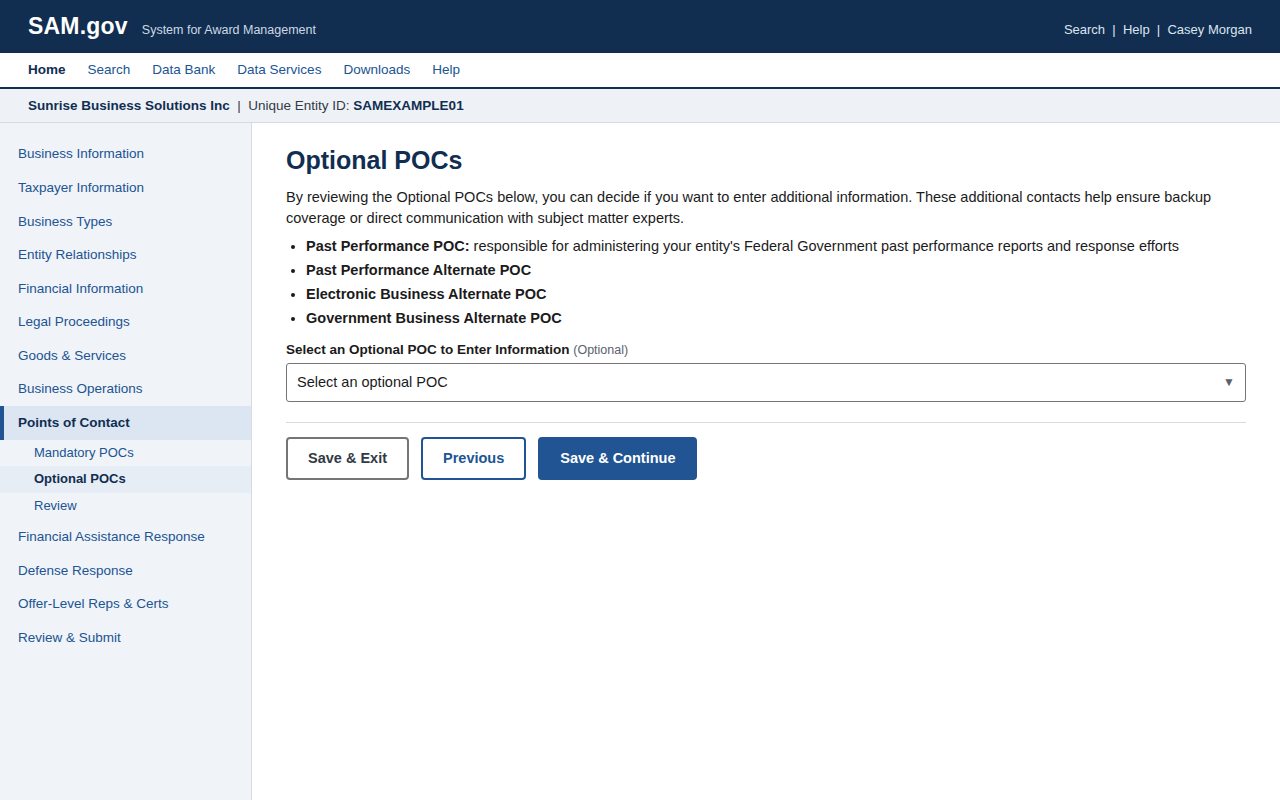
Below the mandatory POCs sits an optional list: Past Performance POC, Past Performance Alternate POC, Electronic Business Alternate POC, and Government Business Alternate POC.
A dropdown lets you select an optional POC type and open the same contact form for it.
SAM.gov, Optional POCs page
Descriptions of the optional POC types and a Select an Optional POC to Enter Information dropdown.
When you do this step for real, this is the screen waiting for you on the site. Read it over, then use the practice screen below to learn the step by doing it safely first.
Practice the choice. The scenario: Sunrise wants backup coverage for the person who manages its registration. Pick the optional POC that provides it.
A quick check on this one screen. Answer every question correctly to mark this screen complete. You can move on with Next at any time, finished or not, but the screen only counts as complete once its practice and this check are both done. You can try again if you miss one.
Why add an alternate POC?
On the real screen, add alternates if your company has the people, especially an Electronic Business Alternate POC, so the registration stays reachable when a primary contact leaves. Optional POCs can also be added later from your Workspace.
Screen 71: Points of Contact: Review
The review screen lists the POCs you entered, each with an Edit link.
A Points of Contact Complete message confirms the section when it closes.
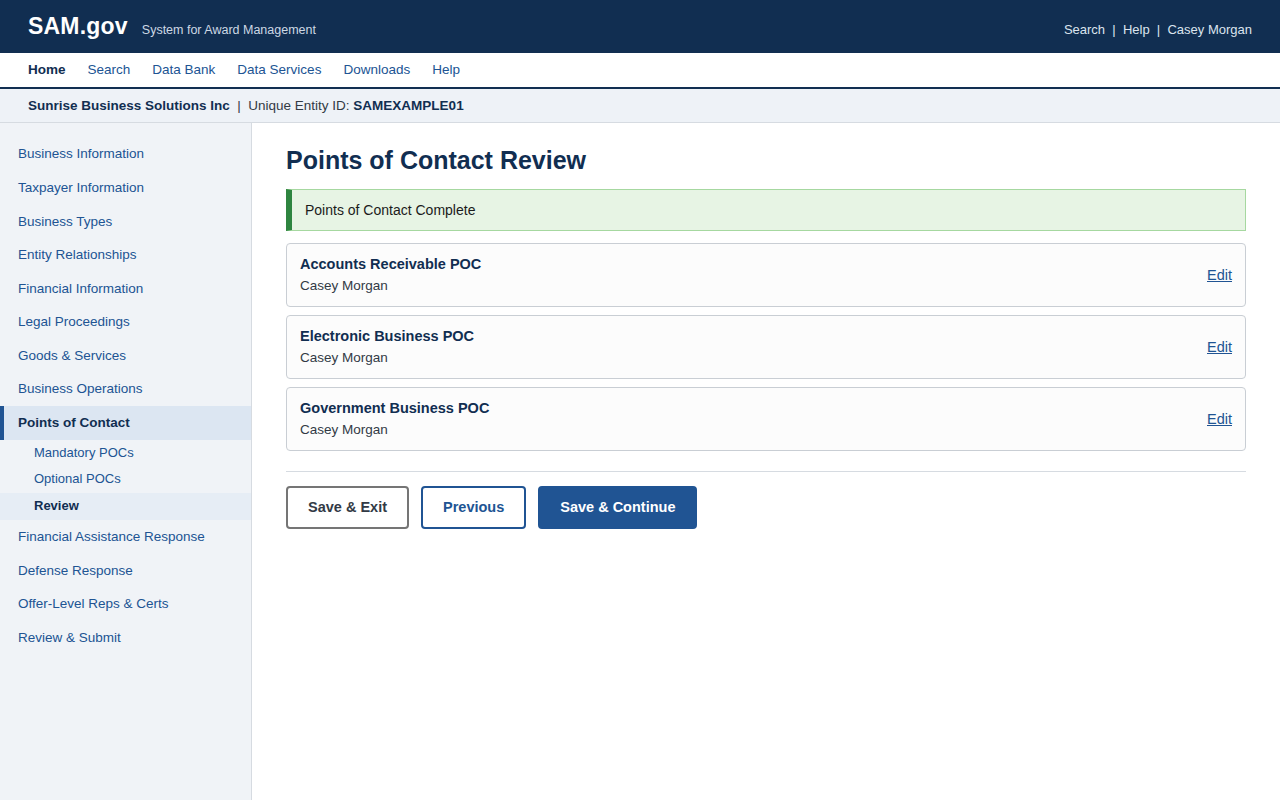
SAM.gov, Points of Contact Review page
POC rows with Edit links, and the section completion confirmation.
When you do this step for real, this is the screen waiting for you on the site. Read it over, then use the practice screen below to learn the step by doing it safely first.
Practice the review. Check each item you verified.
Check each item after reviewing it
A quick check on this one screen. Answer every question correctly to mark this screen complete. You can move on with Next at any time, finished or not, but the screen only counts as complete once its practice and this check are both done. You can try again if you miss one.
What confirms this section is complete?
On the real review, check every POC email address character by character. A typo passes the format check and still sends official notices to nowhere.
Conditional Step: The SBA Supplemental Page
One more step can appear after Points of Contact for a small business: the SBA Supplemental Page. It is not a SAM.gov page (SAM.gov is the System for Award Management). It is a page from the U.S. Small Business Administration, the SBA, that the registration sends you to.
It appears for entities whose registration shows them as a small business under one of their NAICS codes. The handoff surprises many first time registrants. Do not be surprised: the link out is part of the official flow.
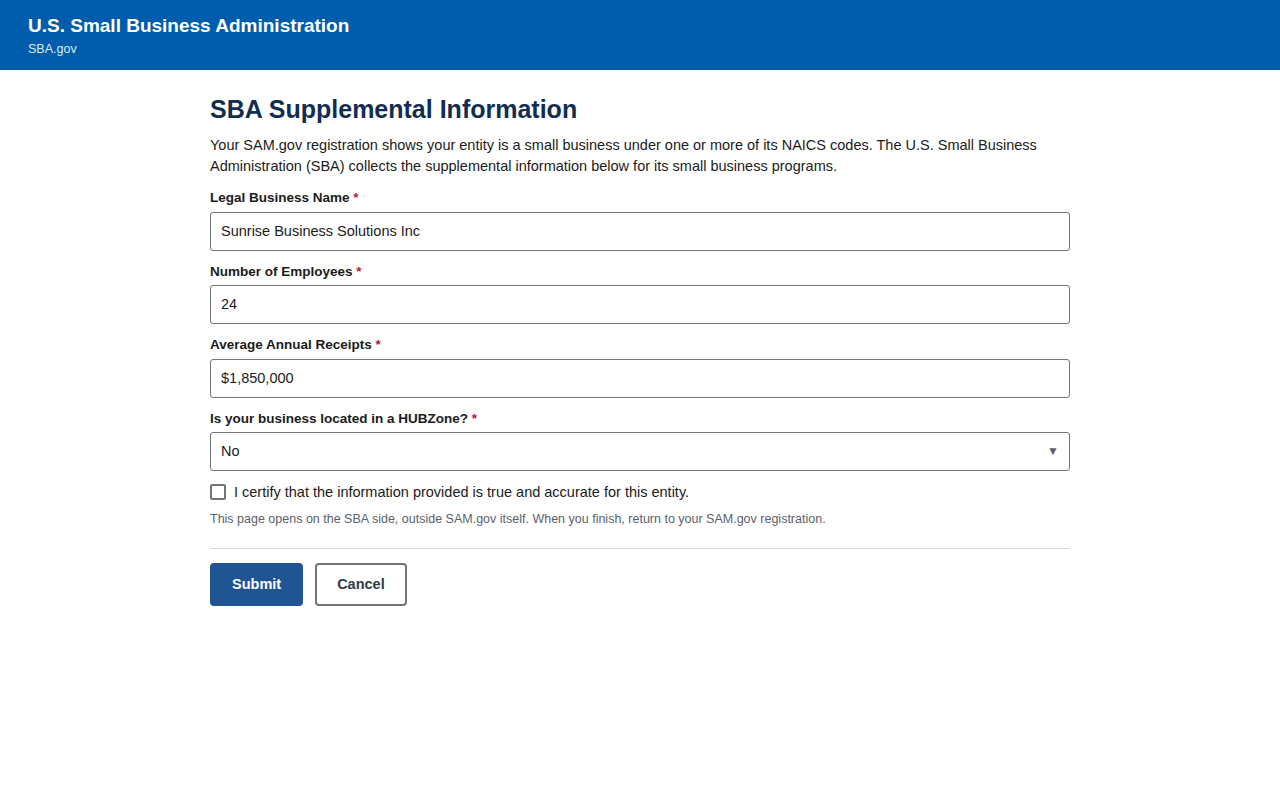
SBA Supplemental Page, reached from SAM.gov
An SBA page that opens from the registration when the entity is a small business under one of its NAICS codes. It collects supplemental small business information on the SBA side, outside SAM.gov itself.
When you do this step for real, this is the screen waiting for you on the site. Read it over, then use the practice screen below to learn the step by doing it safely first.
Practice the recognition. Sunrise is a small business under its NAICS code. Answer what Sunrise should do when this page appears.
Pick one: Sunrise finishes Points of Contact and the flow presents the SBA Supplemental Page. What is the right move?
A quick check on this one screen. Answer every question correctly to mark this screen complete. You can move on with Next at any time, finished or not, but the screen only counts as complete once its practice and this check are both done. You can try again if you miss one.
What is the SBA Supplemental Page?
When does this step appear?
On the real flow, if the SBA Supplemental Page appears after Points of Contact, follow the link out to the SBA, complete the supplemental information from the same records you used in SAM.gov, and then return to finish your registration. If it never appears, your entity was not routed to it and there is nothing to complete.
Module complete Module Complete
Congratulations. You worked through every screen in this module, practiced each one with the example company, and passed the check on each screen.
Here is what you covered:
- Screen 68: Points of Contact: Section intro (Before You Begin)
- Screen 69: Mandatory Points of Contact
- Screen 70: Optional Points of Contact
- Screen 71: Points of Contact: Review
- Conditional step: The SBA Supplemental Page
Your contacts are recorded. Next, the Financial Assistance Response, a short section with one gateway question.
Pulse Academy | GovCon Mastery Tool. This lesson teaches the registration path. SAM.gov, Login.gov, and the Federal Service Desk are official government services; Pulse Academy is not part of any government agency, and no agency endorses this training.